 BXMedia
01 / BXMedia
Sign in with your TikTok account
Have the TikTok account you use for selling ready.
Open BXMedia → TikTok sign-in
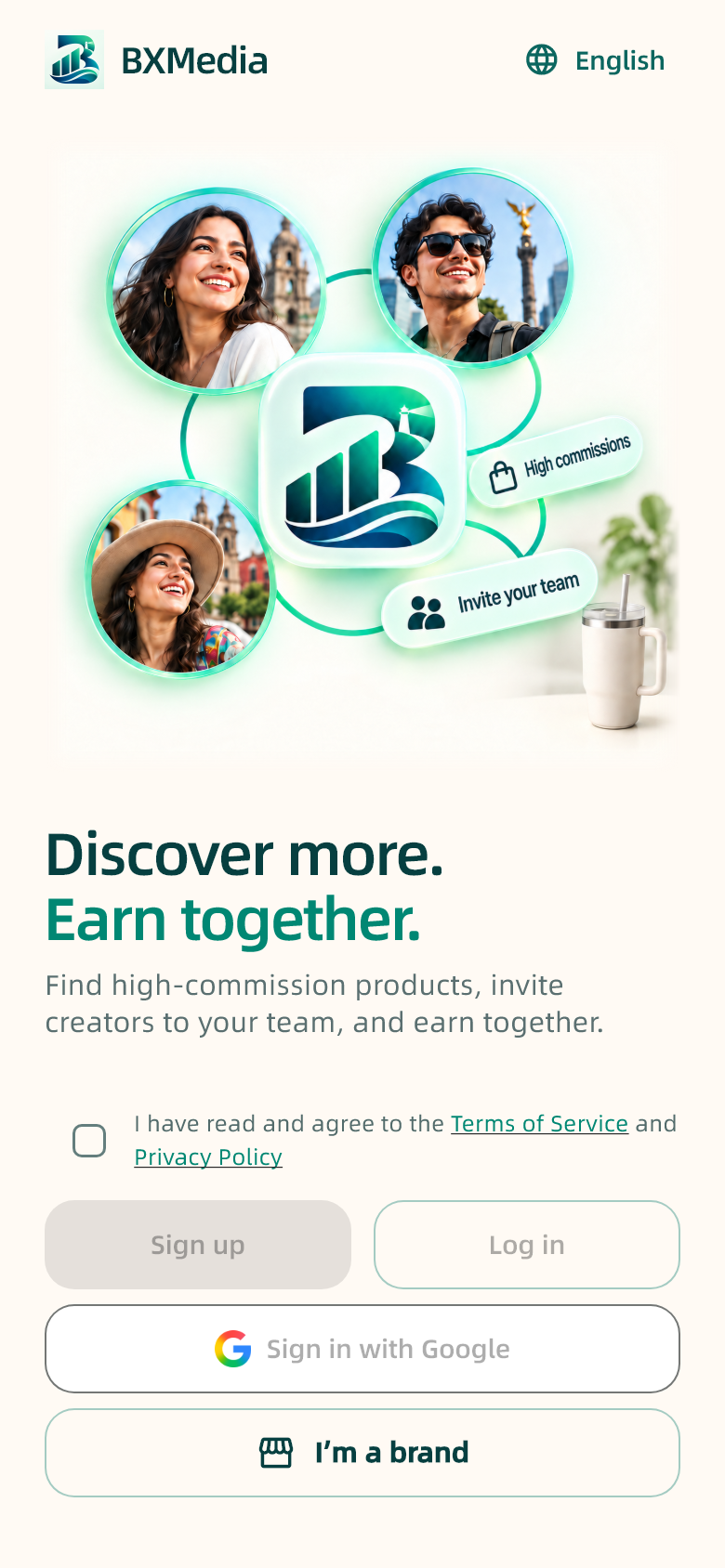
Steps
- Get the app from the official installation or download link provided by BXMedia operations, then open it.
- Read the Terms of use and Privacy policy before choosing TikTok sign-in.
- On TikTok, check the account and complete authorization. Switch accounts first if necessary.
- Return to BXMedia and check your avatar and account details.
Check the result · Continue when you can open Home with the correct account.
Keep in mind · TikTok controls its authorization screen. If return fails, read the error and retry from BXMedia; stop repeated attempts if rate-limited.
02 / BXMedia
Know the four main tabs
Home shows opportunities; Earn helps you find products; Team manages invitations; Profile holds account tools.
Bottom navigation → Home / Earn / Team / Profile
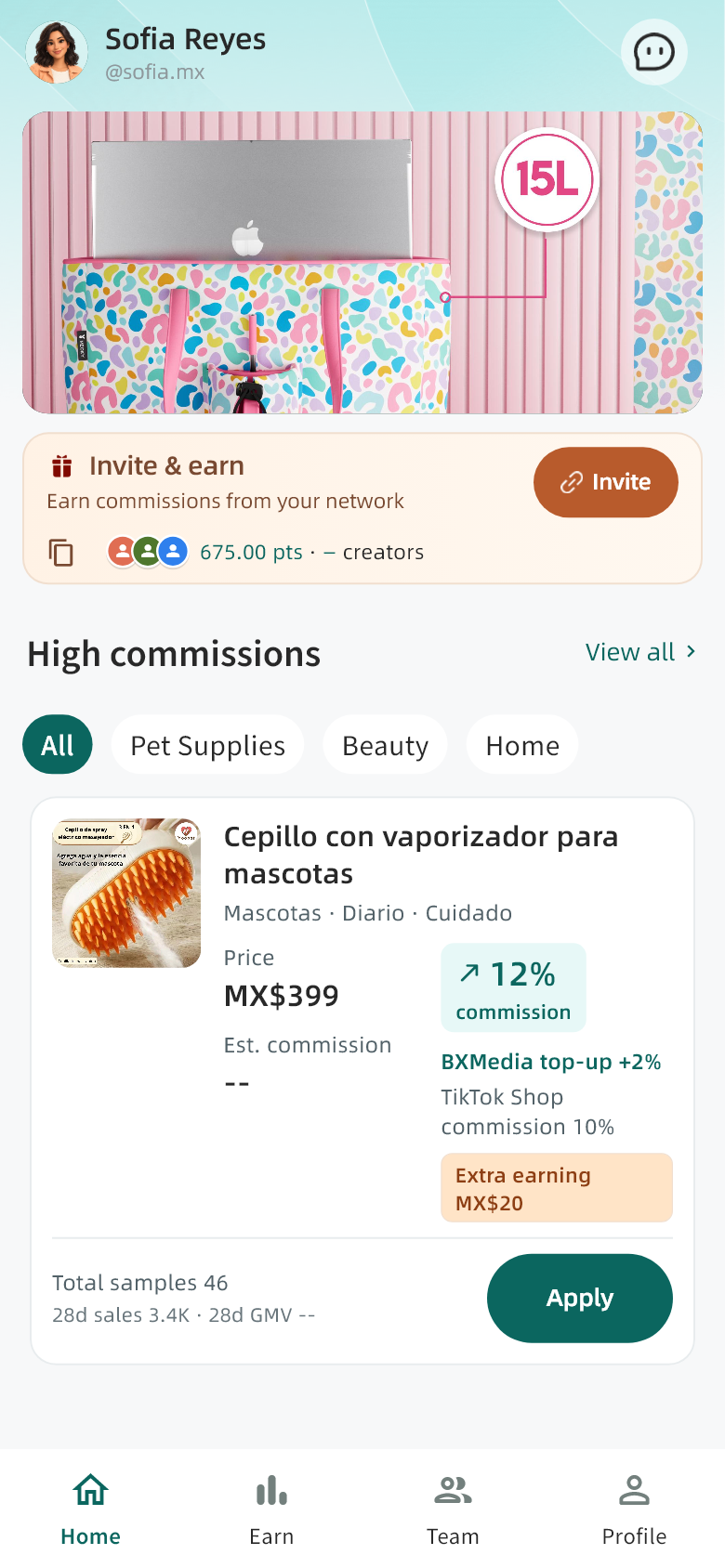
Steps
- Open Home to view recommendations and activities. Use the message icon for alerts.
- Open Earn to browse categories and search for suitable products.
- Open Team to share your invitation and view members and contributions.
- Open Profile for tasks, points, payment details, support and settings.
Check the result · Resume existing work through Profile → My tasks.
Keep in mind · Changing the interface language may not translate merchant product names, categories or requirements.
03 / BXMedia
Find a suitable product
Match the product to your content before checking the cooperation terms.
Earn → Search or category → Product
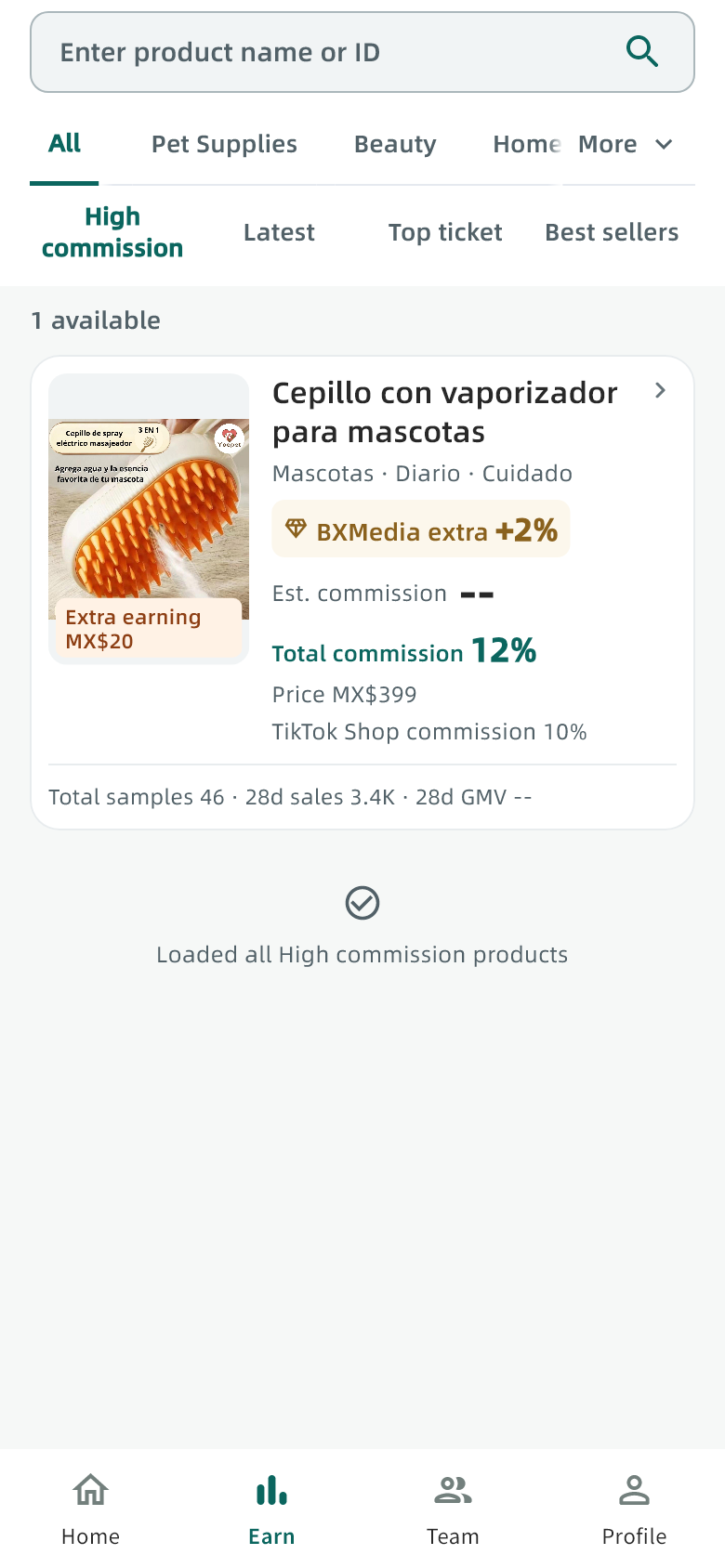
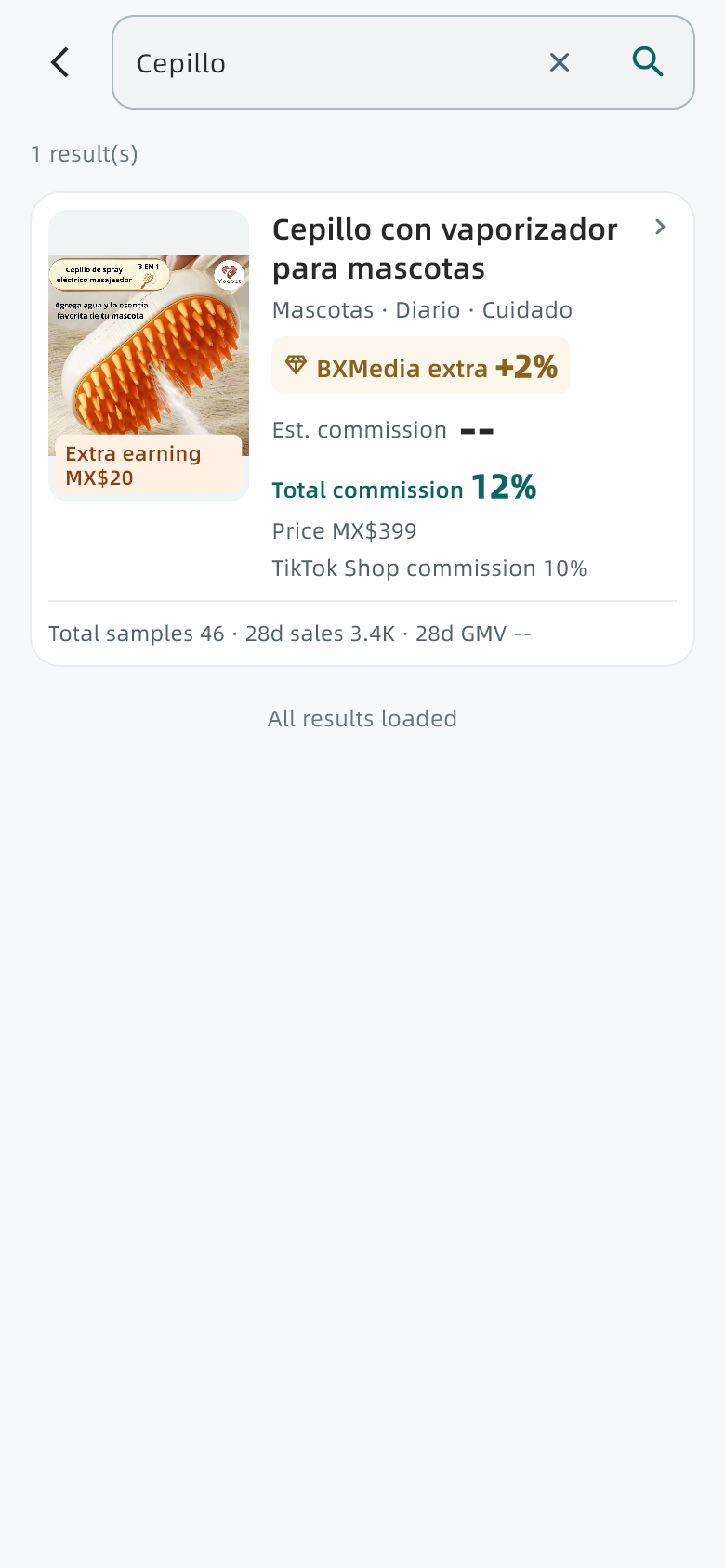
Steps
- Open Earn and use the available categories, sorting and filters.
- Open search, enter a product name or keyword and confirm.
- Select a result to review its product, commission and content requirements.
Check the result · Open the selected product details before joining.
Keep in mind · If results are empty, shorten the keyword or clear filters. A failed load or empty filter is not an eligibility decision.
04 / BXMedia
Review the product and choose how to join
Price, estimated commission, additional rewards and requirements have different meanings.
Home or Earn → Product details
Steps
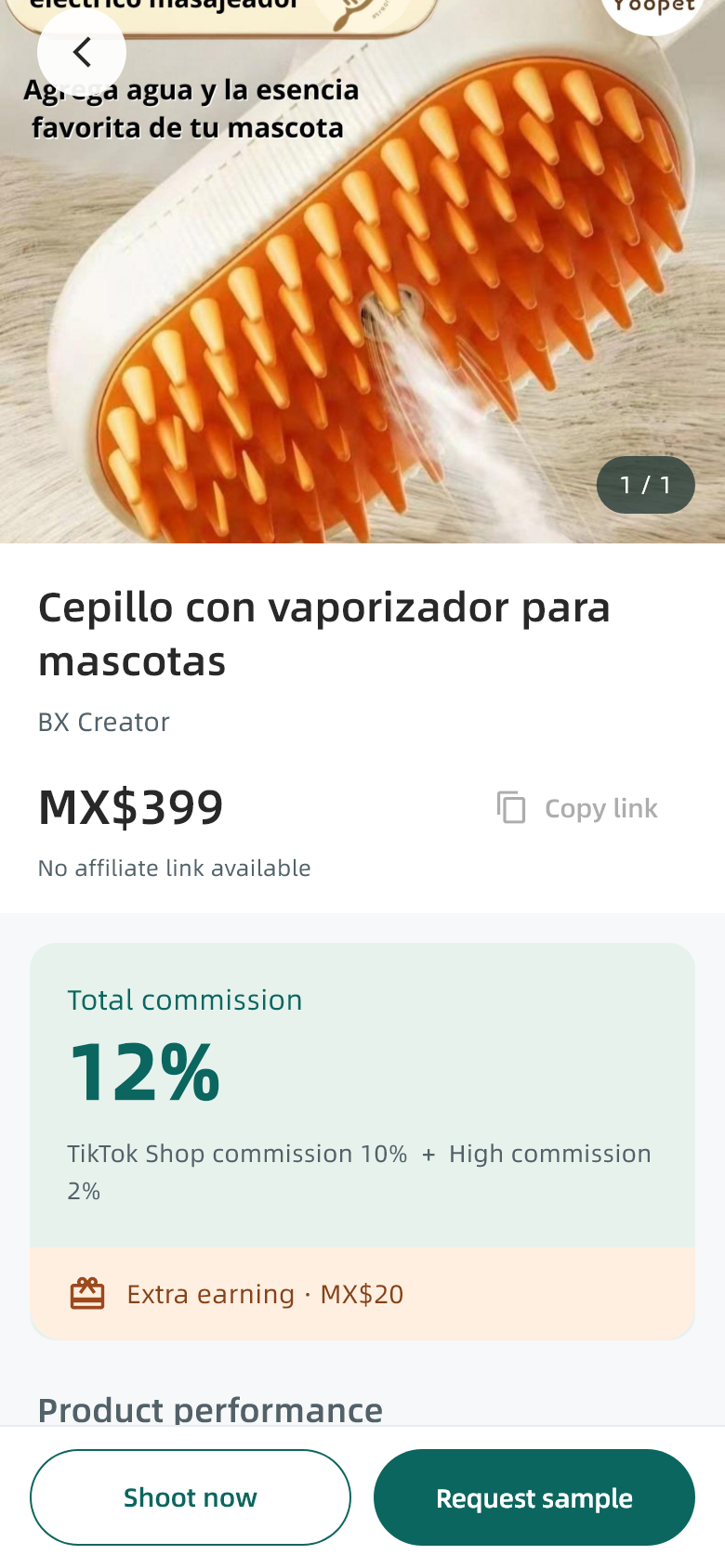
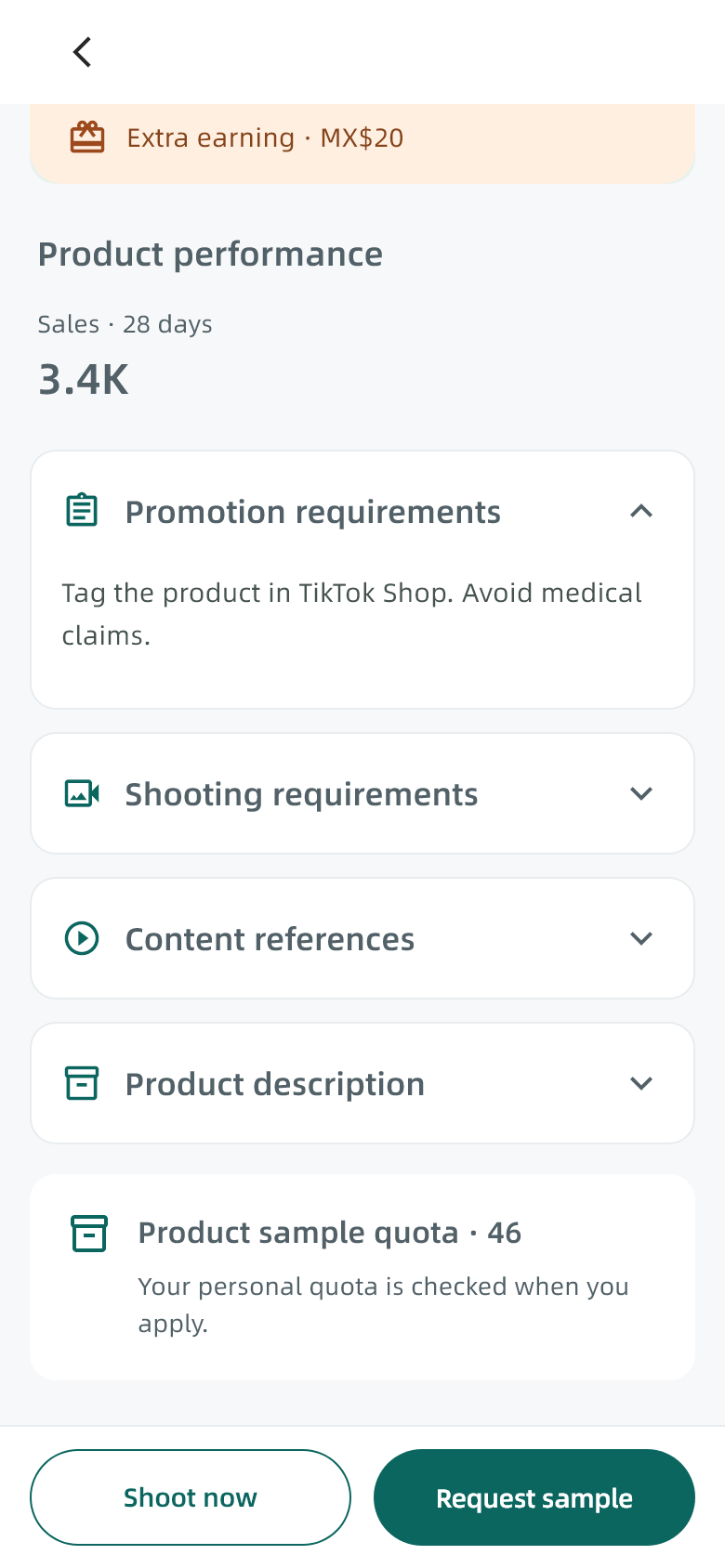
- Read product information, creative requirements, delivery requirements and reference material.
- Check the price and commission separately. Additional rewards apply only as described for that product.
- Choose Apply for sample if you need a sample, or Shoot directly if you already have the product and can meet the requirements.
Check the result · Review the sample application or confirm creation of a direct task.
Keep in mind · Estimated commission is not money already earned. If an action is unavailable, read the reason before retrying.
05 / BXMedia
Apply for a sample in BXMedia
Check the product, reward structure and delivery requirements first.
Product details → Apply for sample
Steps
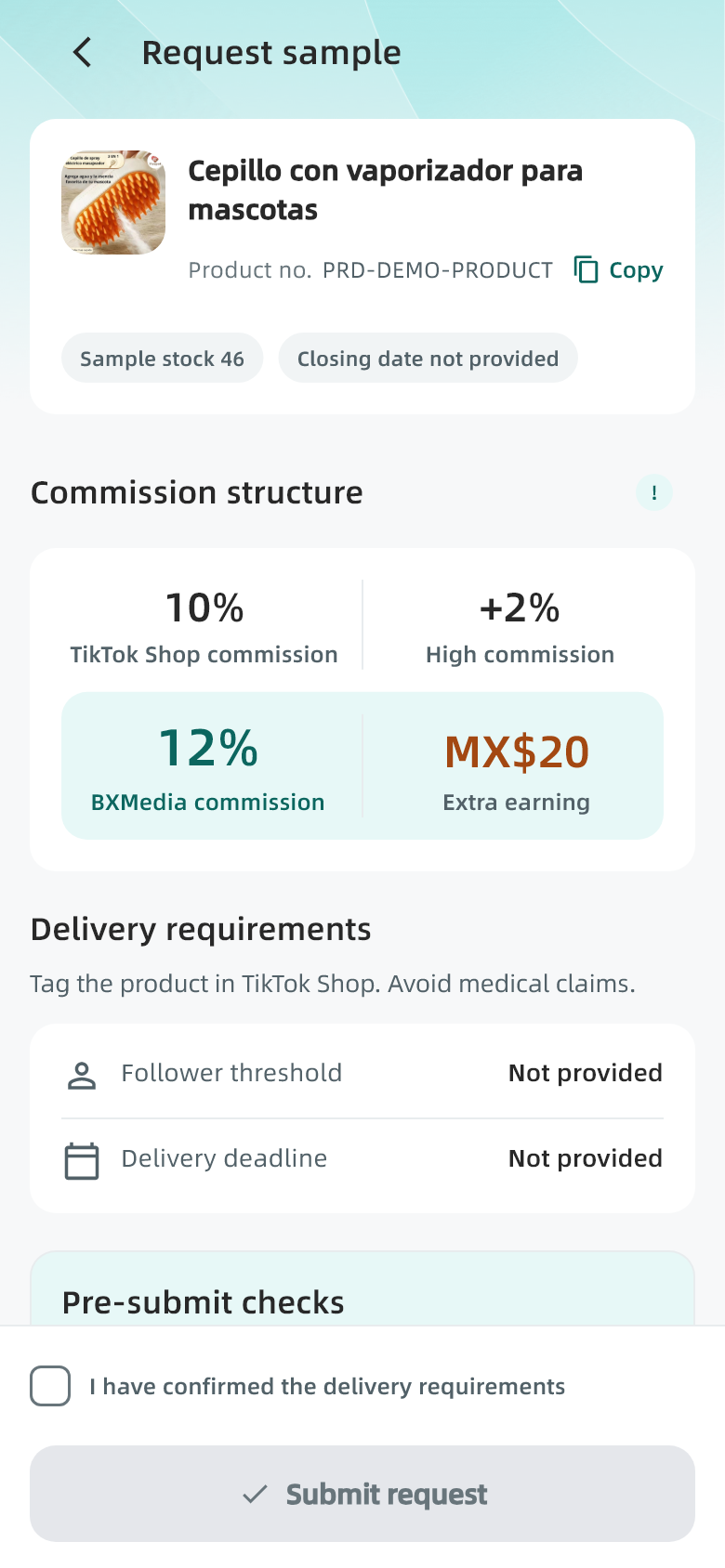
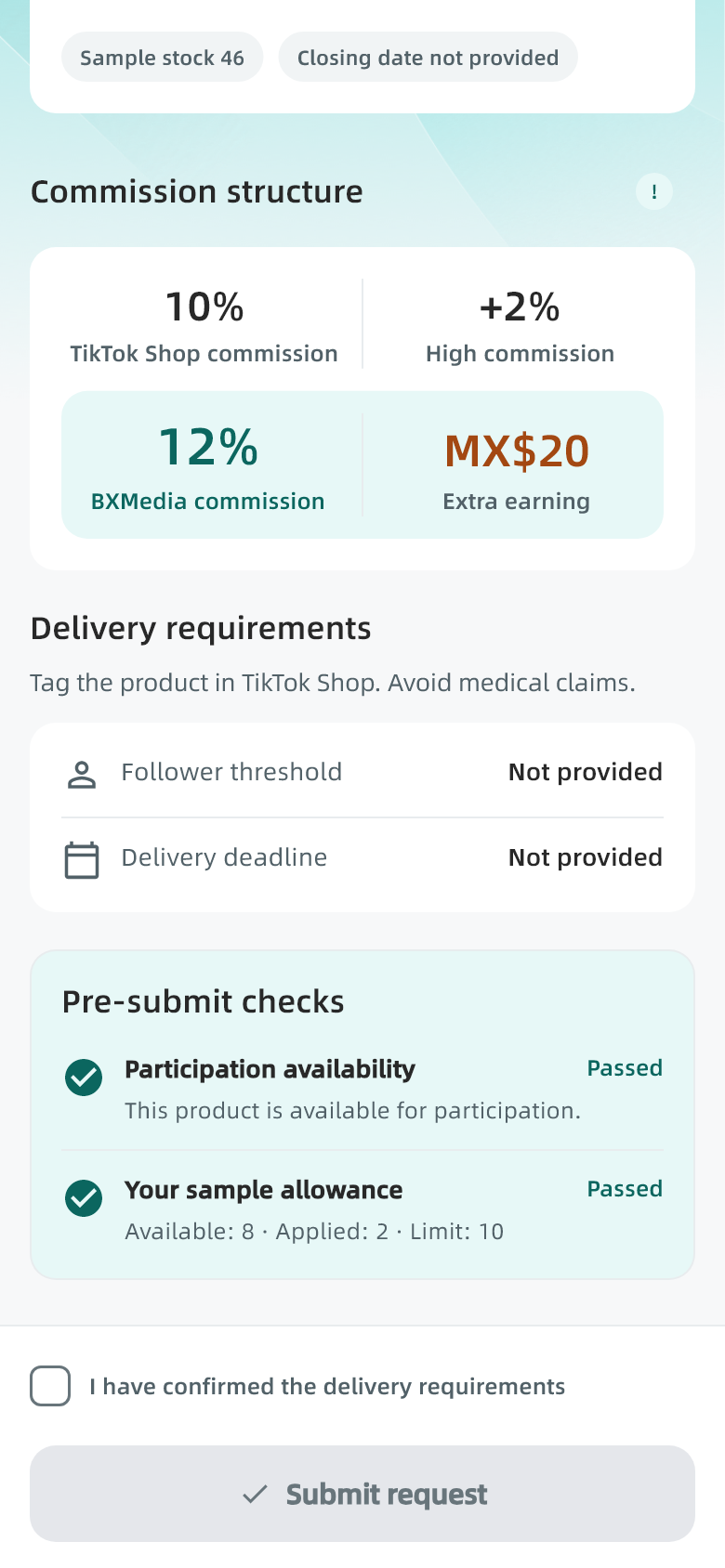
- Review the requirements, audience criteria and deadline shown on the application page.
- Check eligibility and remaining sample capacity. Resolve any blocked or failed check.
- Confirm that you have read the requirements, submit the application and wait for the result.
Check the result · Open the resulting task and keep its number for follow-up.
Keep in mind · This page does not currently request a shipping address. Check the recipient and address when applying on TikTok. A BXMedia record is not sample approval.
06 / BXMedia
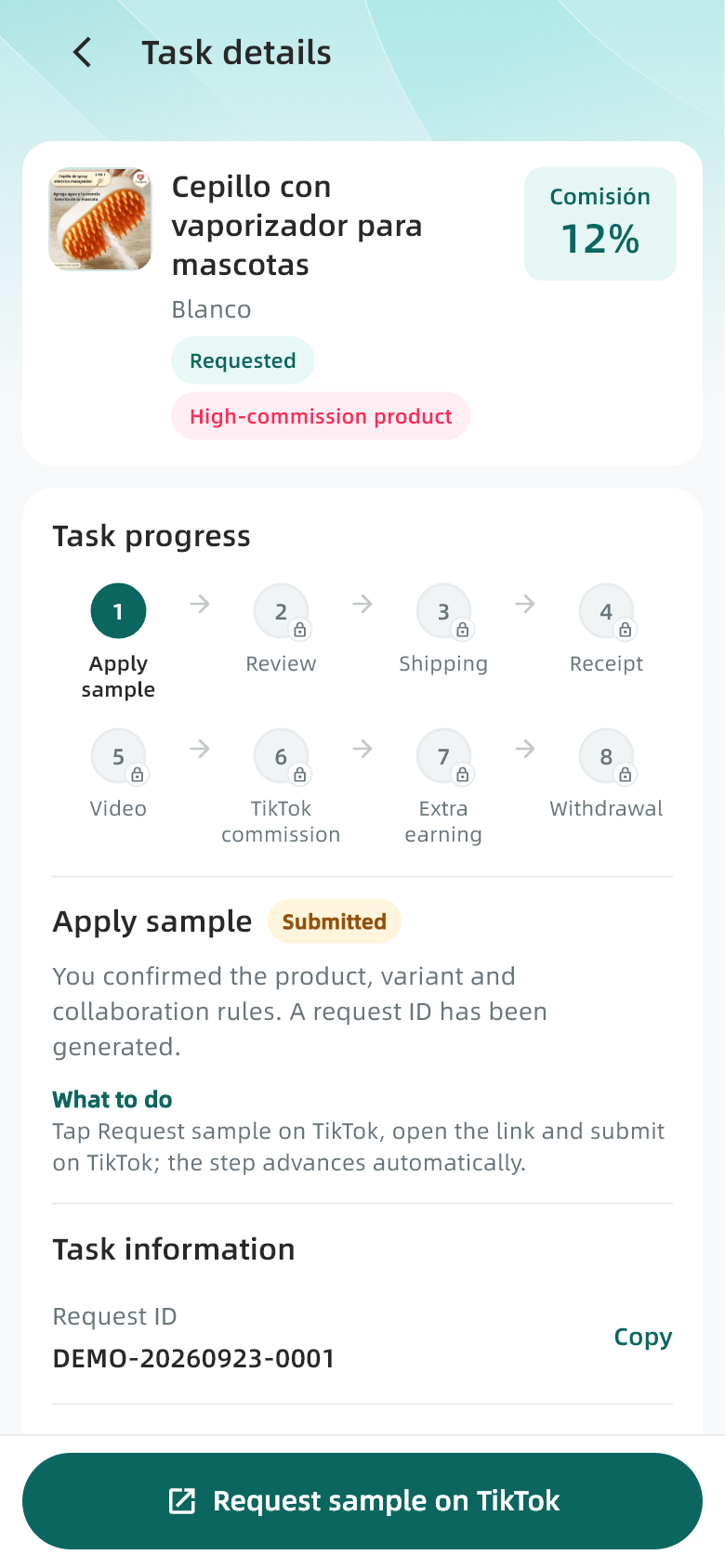
Continue the sample application on TikTok
Creating a BXMedia record is followed by the TikTok action shown in the task.
Profile → My tasks → Task → Sample application
Steps
- Check that the current task stage is the sample application stage and read the requirements.
- Use the task button to open the corresponding sample application on TikTok.
- Check the product, recipient, contact details and address on TikTok, then follow its submission steps.
- Return to the original BXMedia task. Updates can take time
- retain the task number.
Check the result · Check the application record on TikTok and follow the original BXMedia task.
Keep in mind · Copying a link does not submit an application. If the stage has not changed, check TikTok before creating another request.
07 / BXMedia
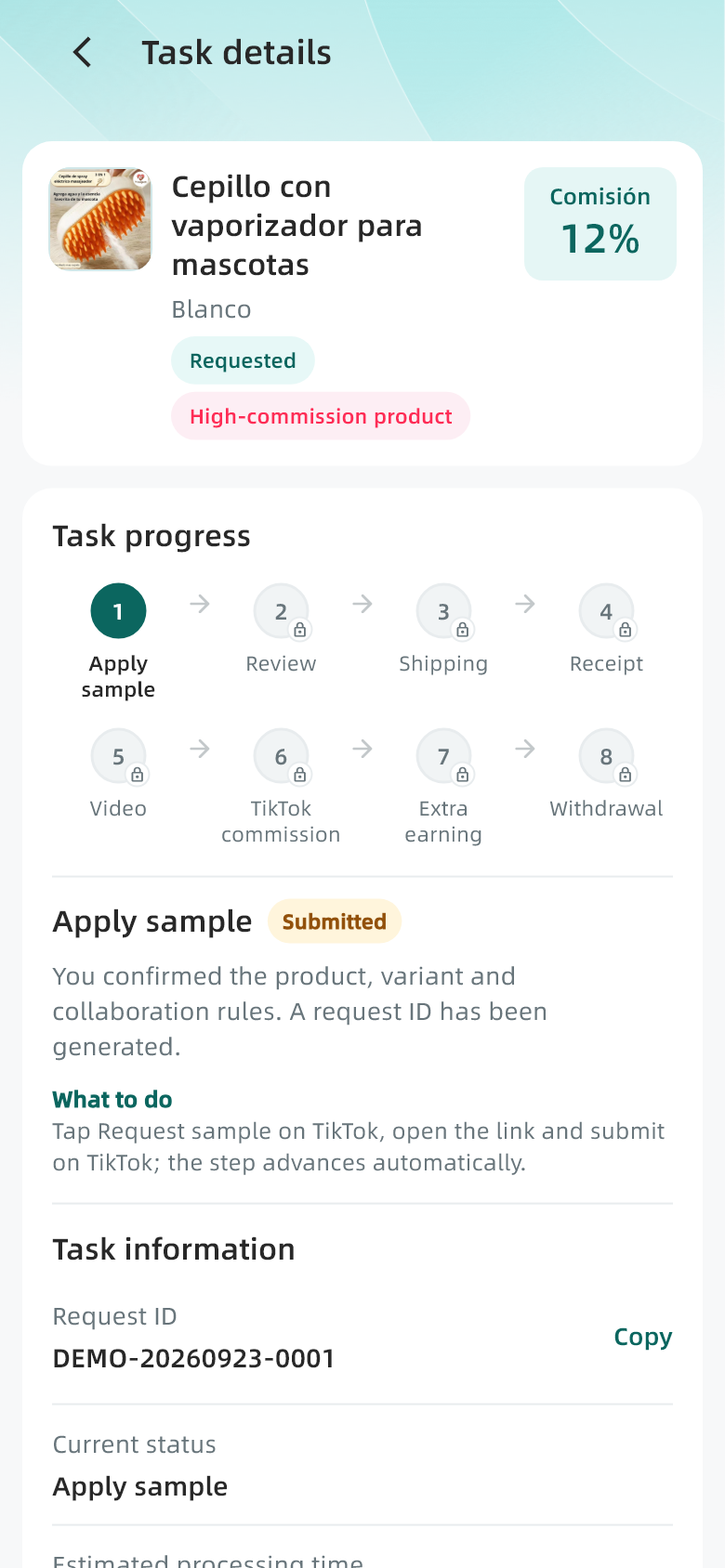
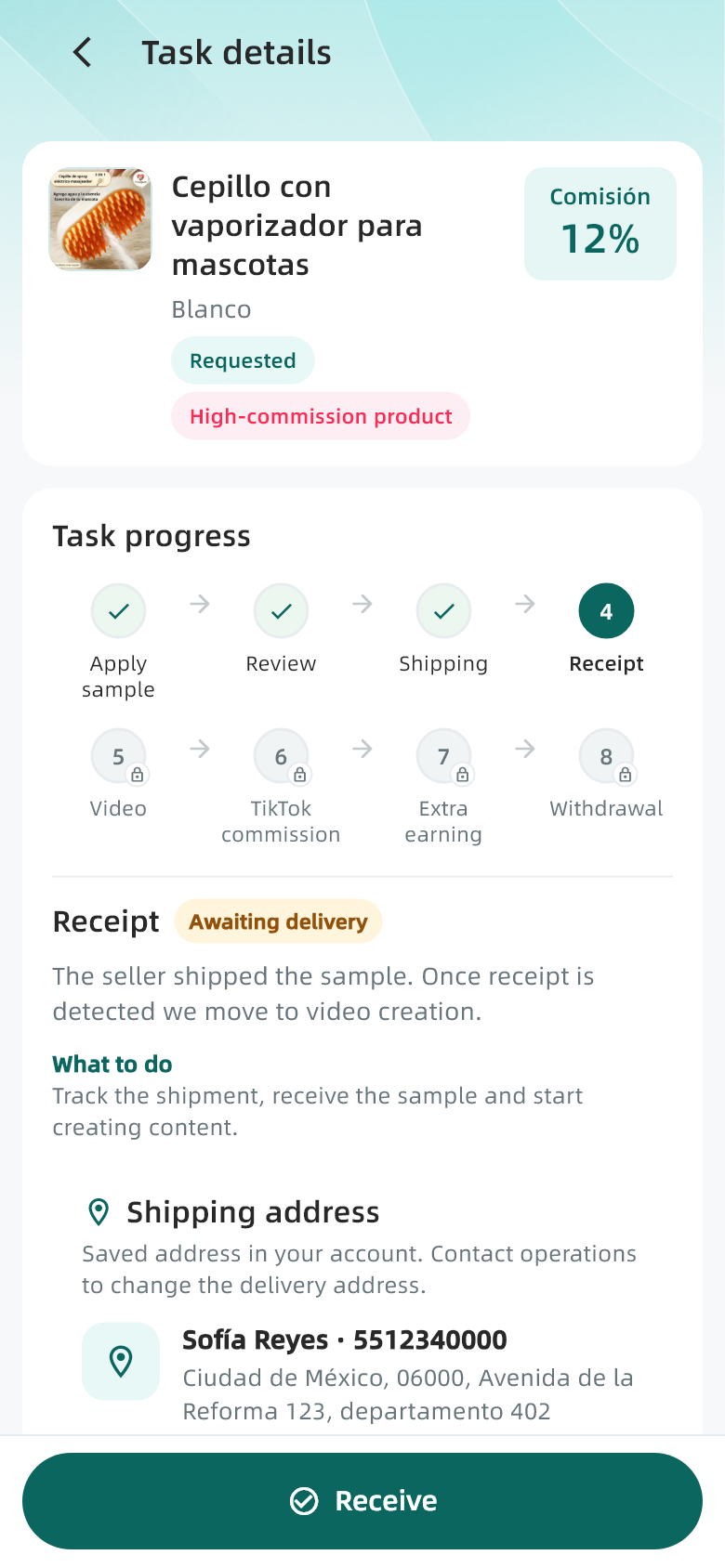
Follow review, shipping and receipt
Separate stages that require your action from stages where you wait.
My tasks → Task details
Steps
- During review, read the status and any rejection reason. Contact operations if clarification is needed.
- During shipping, check the tracking and shipping information actually available.
- After receiving and checking the physical product, use Confirm receipt if the page provides it and review the next content requirements.
Check the result · Continue when the task enters the content creation stage.
Keep in mind · For missing tracking updates, damage or the wrong item, keep the task number, tracking information and photos for support.
08 / BXMedia
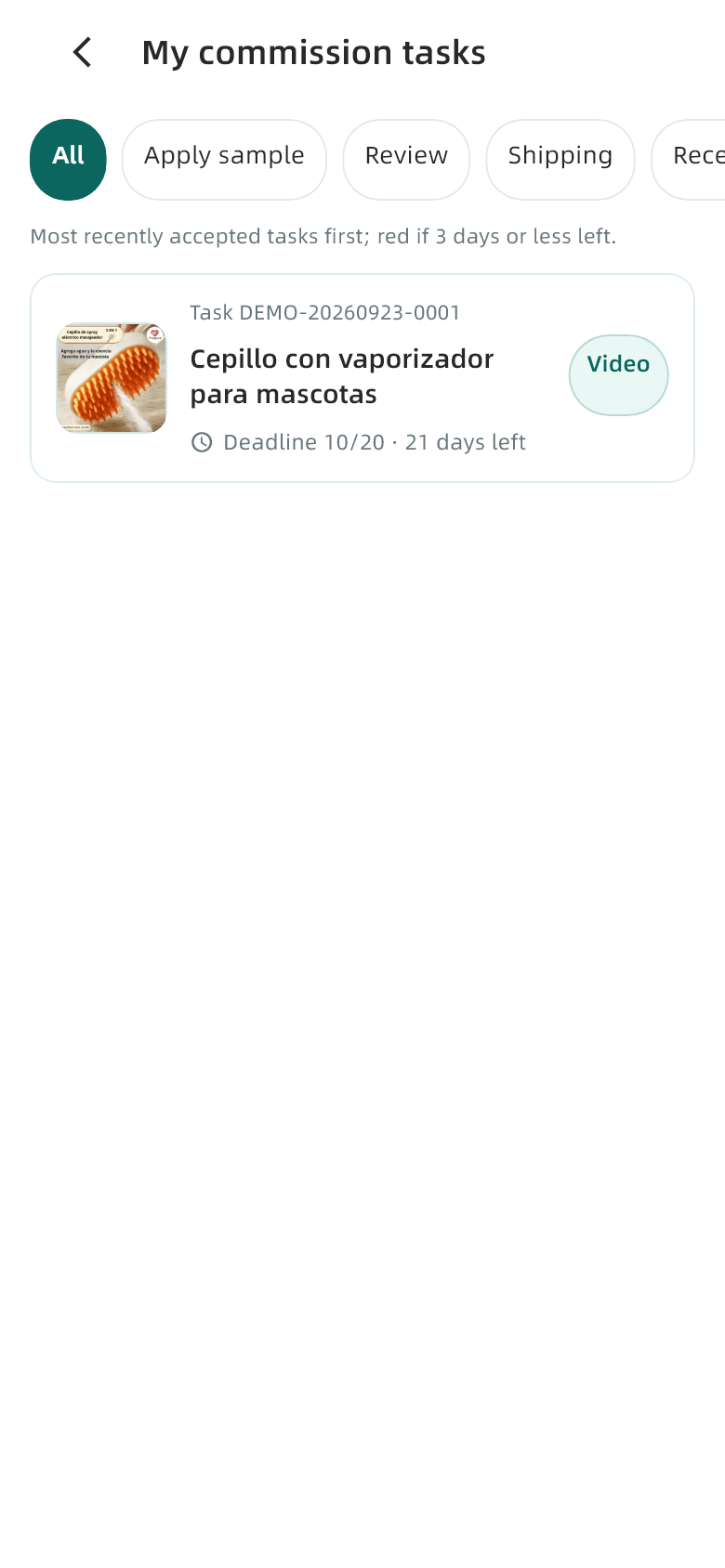
Resume a task already in progress
Use the existing product cooperation record for each next step.
Profile → My tasks
Steps
- Open Profile → My tasks to view your joined products.
- Use available status filters and check the product name and task number.
- Open the task, read its current stage, requirements and bottom action button.
- Complete required actions and check updates for review or shipping. Open available stages to review their instructions.
Check the result · Continue in the original task instead of creating another record.
Keep in mind · Cancel only when the action is available and you intend to end participation. If shipping or creation has started, explain the situation to operations first.
09 / BXMedia
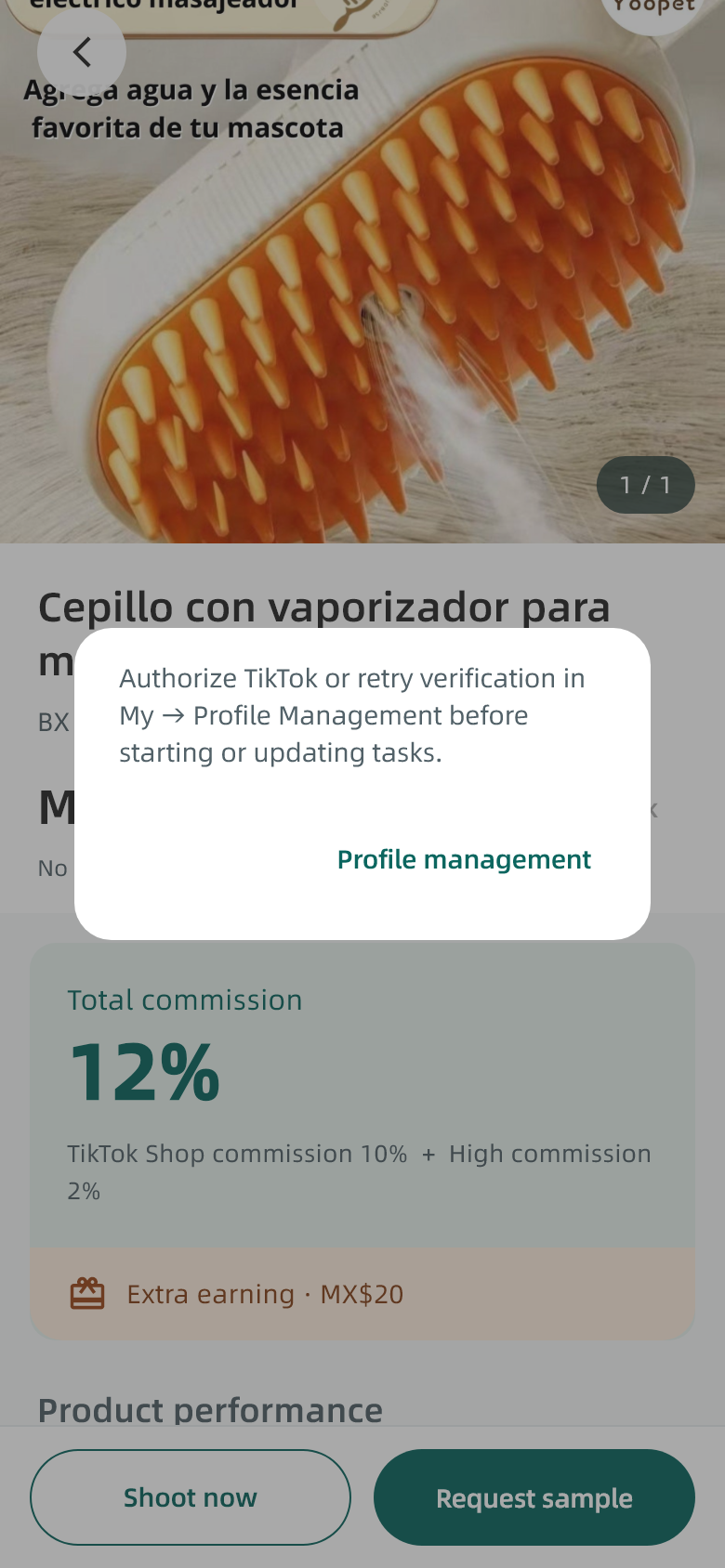
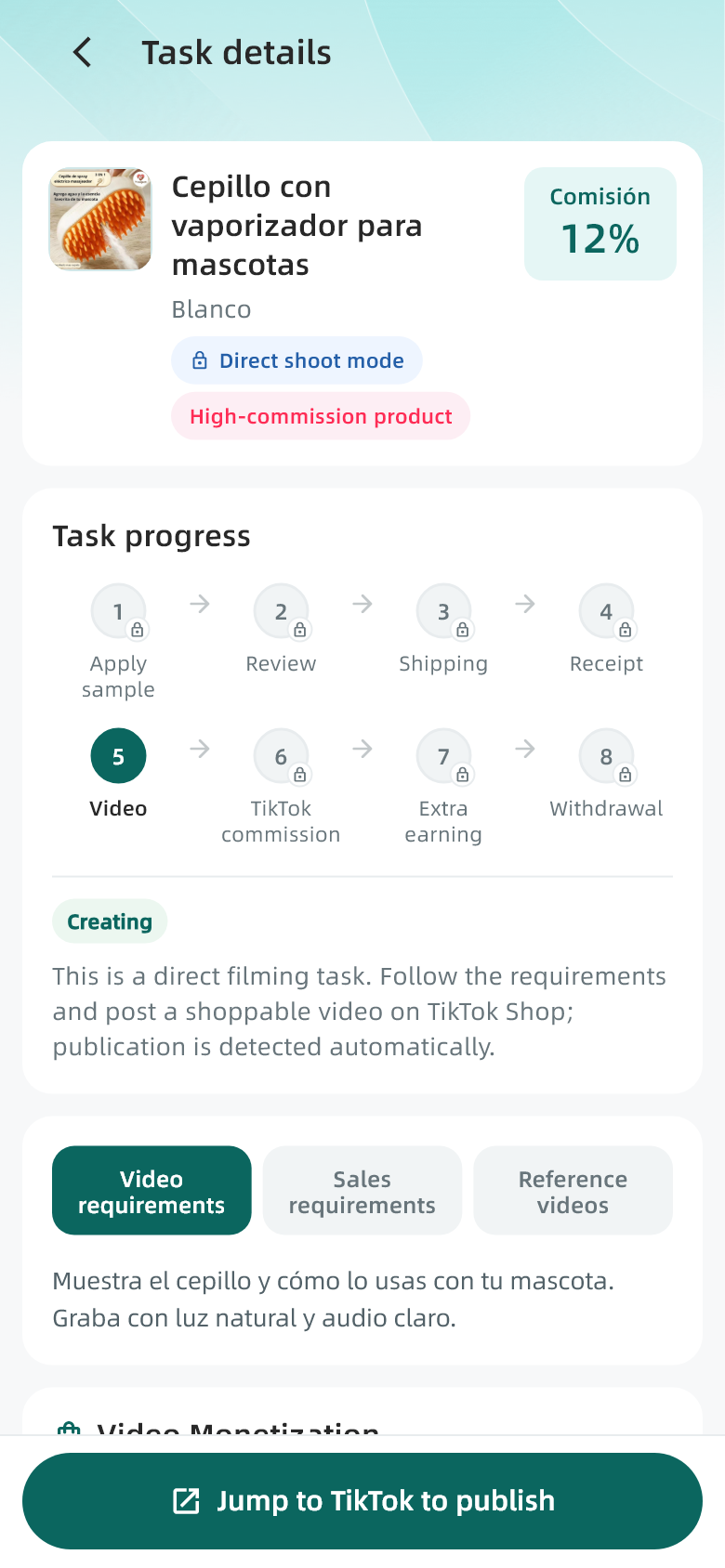
Start a direct task when you have the product
Use this route when you can already create compliant content with the product.
Product details → Shoot directly → Confirm
Steps
- Review the same product and its creative and delivery requirements.
- Choose Shoot directly and read the confirmation. Cancel returns to the product.
- After successful creation, open the task and follow its instructions to create and publish on TikTok.
Check the result · A direct content task appears for continued tracking.
Keep in mind · A direct task does not automatically request a free sample. Task creation does not mean publication or commission has occurred.
10 / BXMedia
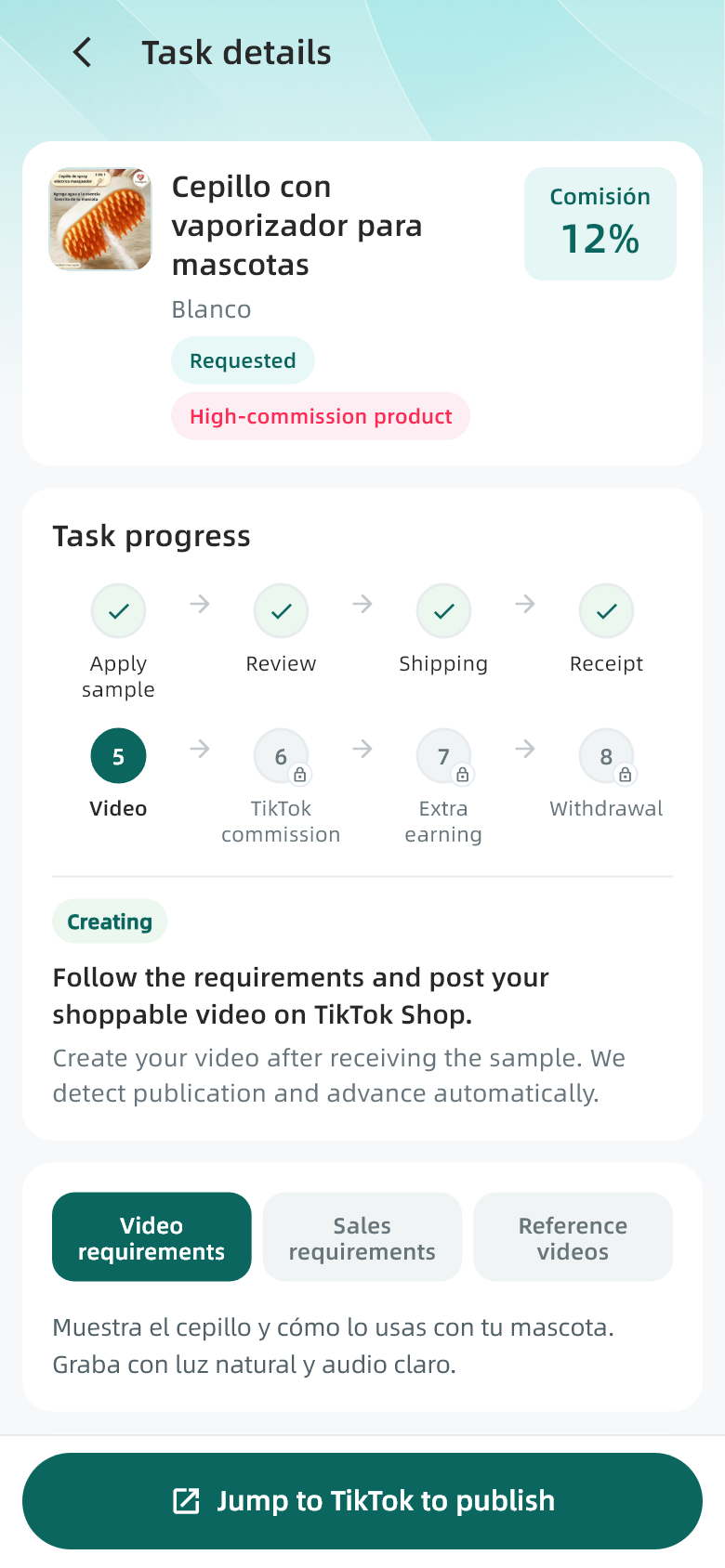
Create and publish a product video
Publish on TikTok and use BXMedia to review the task requirements and progress.
My tasks → Task → Content creation
Steps
- Read the creative requirements for scenes, features and talking points.
- Read delivery requirements for product tagging, content rules and deadline. Watch references when available.
- Prepare original content that meets the task requirements and links to the correct product.
- Use the task button to open TikTok, select or record the video, attach the product and publish there.
Check the result · Confirm on TikTok that the video is published with the correct product, then return to BXMedia.
Keep in mind · Opening the publishing screen or copying a link is not publication. Keep the video and product links for troubleshooting.
11 / BXMedia
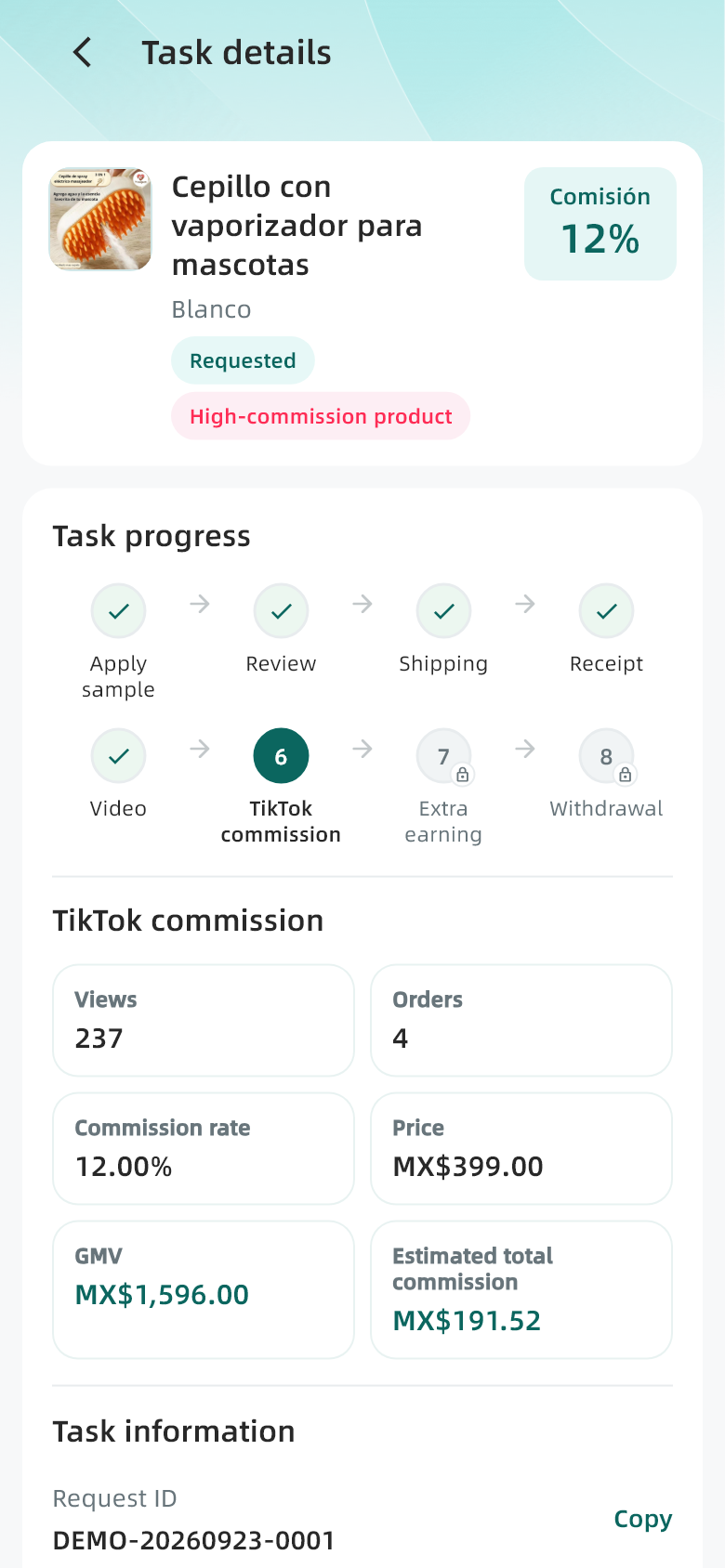
Check recognition and commission progress
Publication, content recognition, orders and commission settlement are separate stages.
My tasks → Task → TikTok commission stage
Steps
- Verify that the video uses the TikTok account associated with the task and the correct product.
- Return to the existing task to check recognition and its current stage.
- Read the order, sales and commission information provided, or wait for updates when unavailable.
- If recognition is missing, give operations the task number and product and video links.
Check the result · Use the original task to follow content and settlement status.
Keep in mind · No commission data does not by itself mean fulfillment failed. No orders, delayed updates or unsettled orders can affect the display.
12 / BXMedia
Understand product commission and app points
Product commission is tracked in tasks; My points shows task and team points.
Profile → Earnings and points
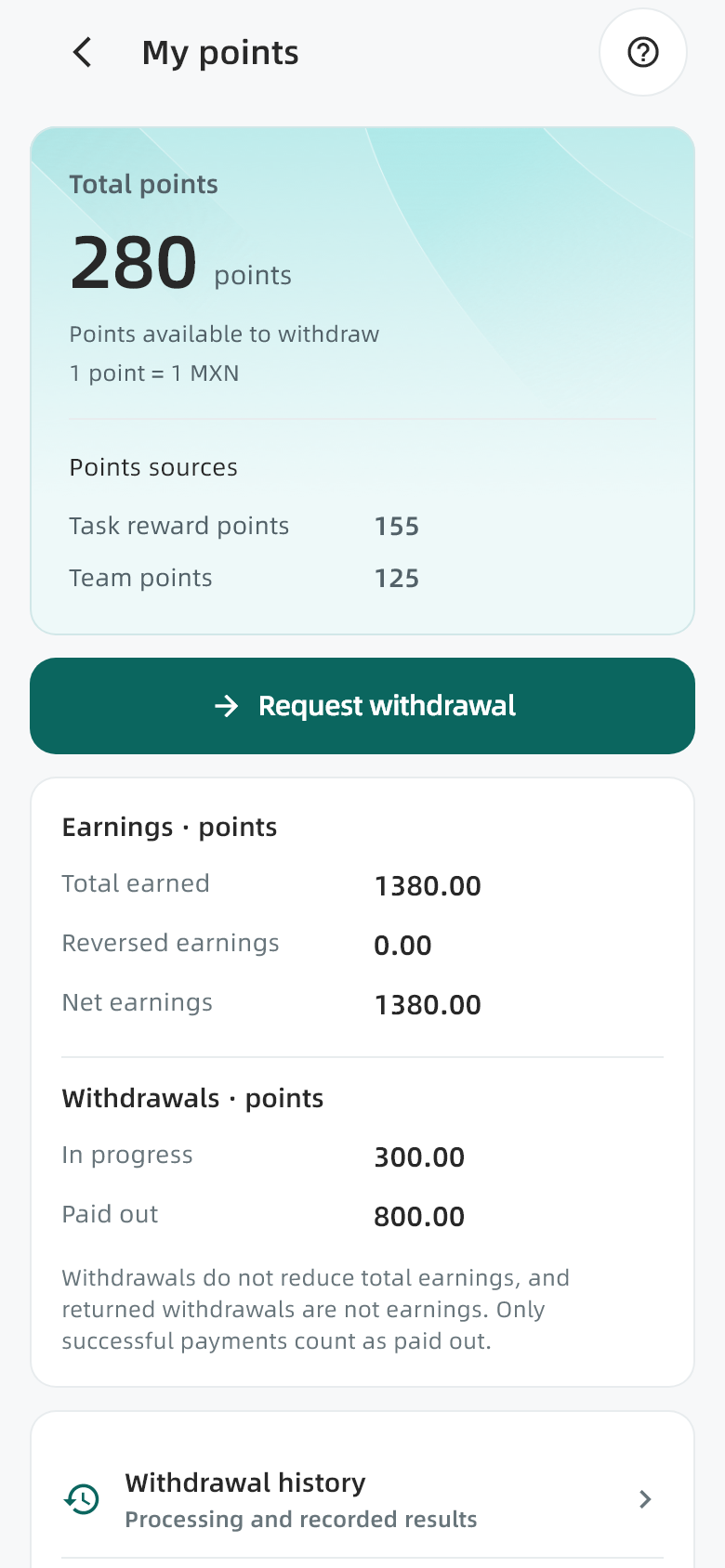
Steps
- Open Profile → Earnings and points.
- Read the available, accumulated and withdrawn values separately, including their labels.
- Open the ledger to identify task points, team points and adjustments.
- Read the current points and withdrawal rules from the page.
Check the result · Use the currently available points and your own payment details when withdrawing.
Keep in mind · Screenshot balances are examples. The current display uses 1 point = 1 MXN; check the rule shown when applying. Estimated product commission is not automatically added to app points.
13 / BXMedia
Check each point change in the ledger
Find the source and reference when a balance looks unclear.
My points → Transaction ledger
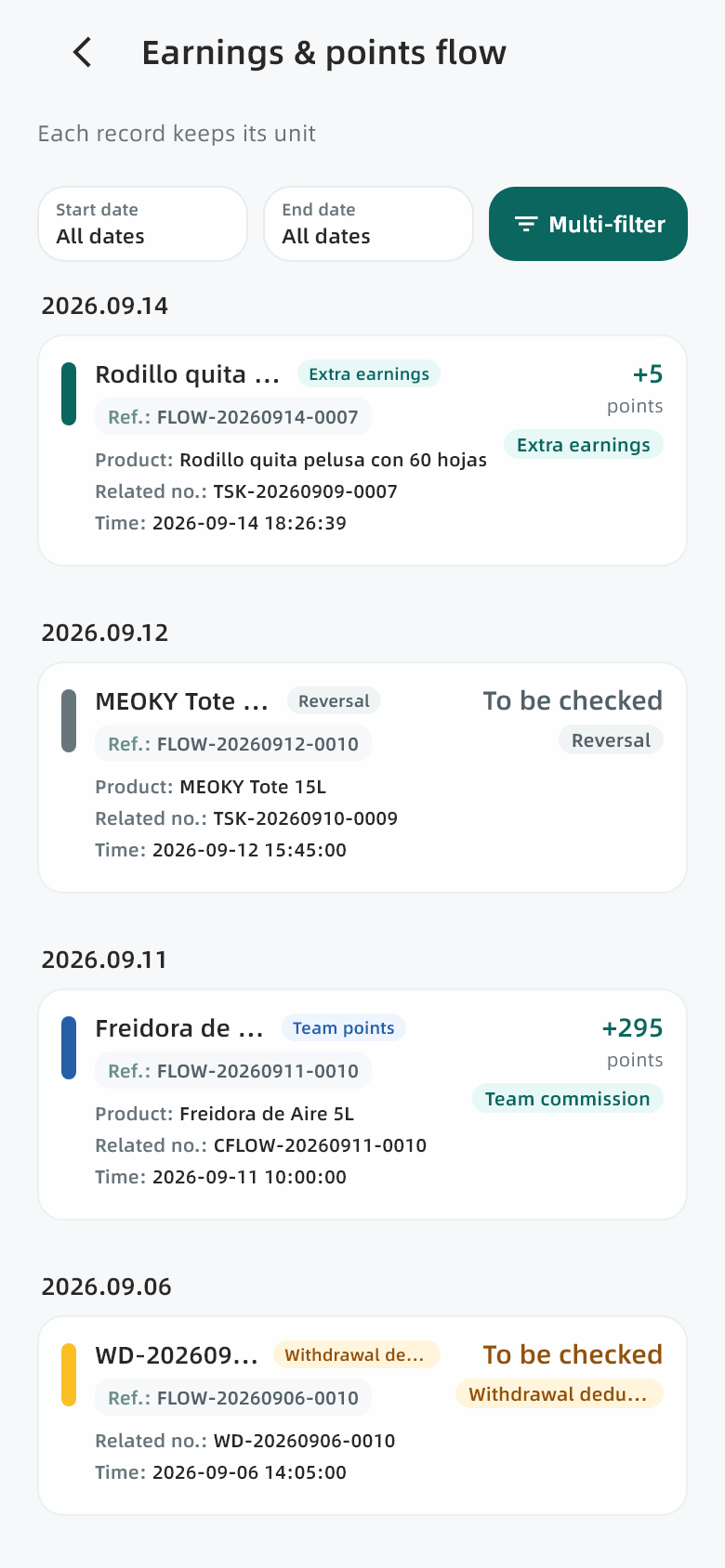
Steps
- Open the transaction ledger from My points.
- Use the time, source or status filters provided.
- Check the date, source, change, unit and associated task or product.
- For reversals or refunds, compare the original transaction and withdrawal record and share the reference with operations if needed.
Check the result · Identify whether each change came from a task, team contribution or withdrawal.
Keep in mind · A returned withdrawal is not new income. Accumulated points do not equal the amount currently available.
14 / BXMedia
Add and check payment details
Enter your own payment information for withdrawal processing.
Profile → Payment details, or Withdrawal → Add details
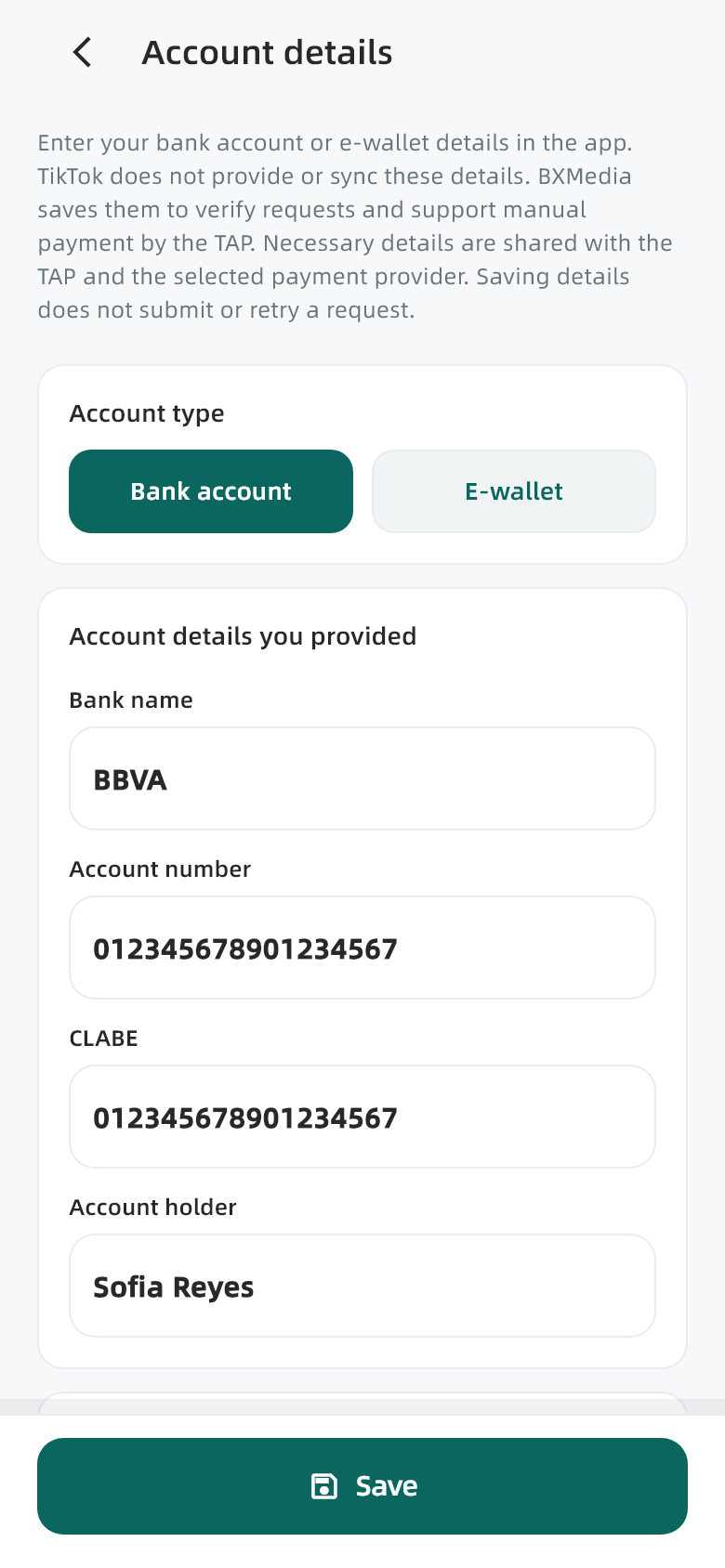
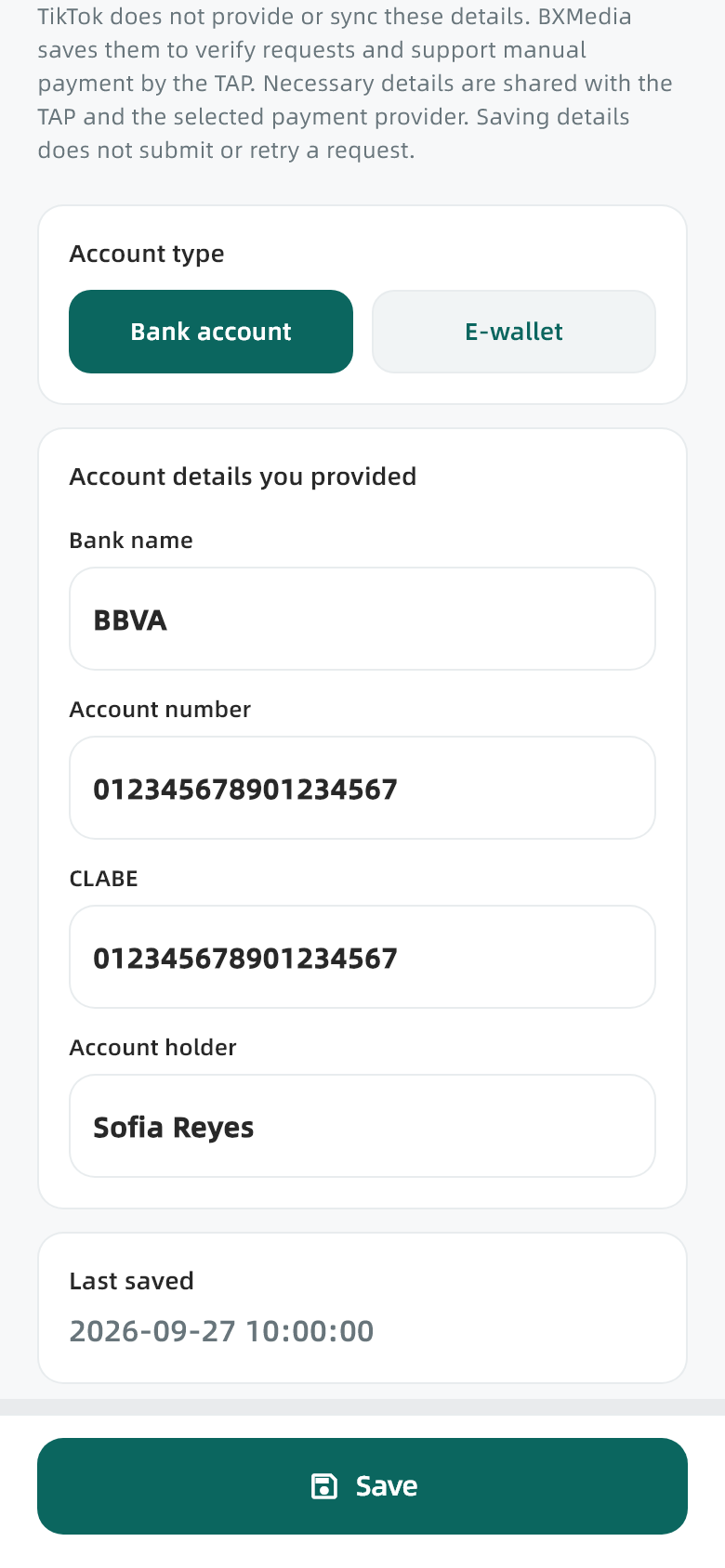
Steps
- Choose the bank account or electronic wallet type that applies to you.
- Enter the institution or wallet provider, account number and holder information requested. Check every character.
- Save, return to withdrawal and verify the displayed account type and ending digits.
Check the result · The displayed saved account matches your intended receiving account.
Keep in mind · TikTok does not automatically supply this payment information. Editing your current details does not necessarily change an already submitted withdrawal.
15 / BXMedia
Submit a points withdrawal
Check the balance, account and requested amount before submitting.
My points → Withdraw points
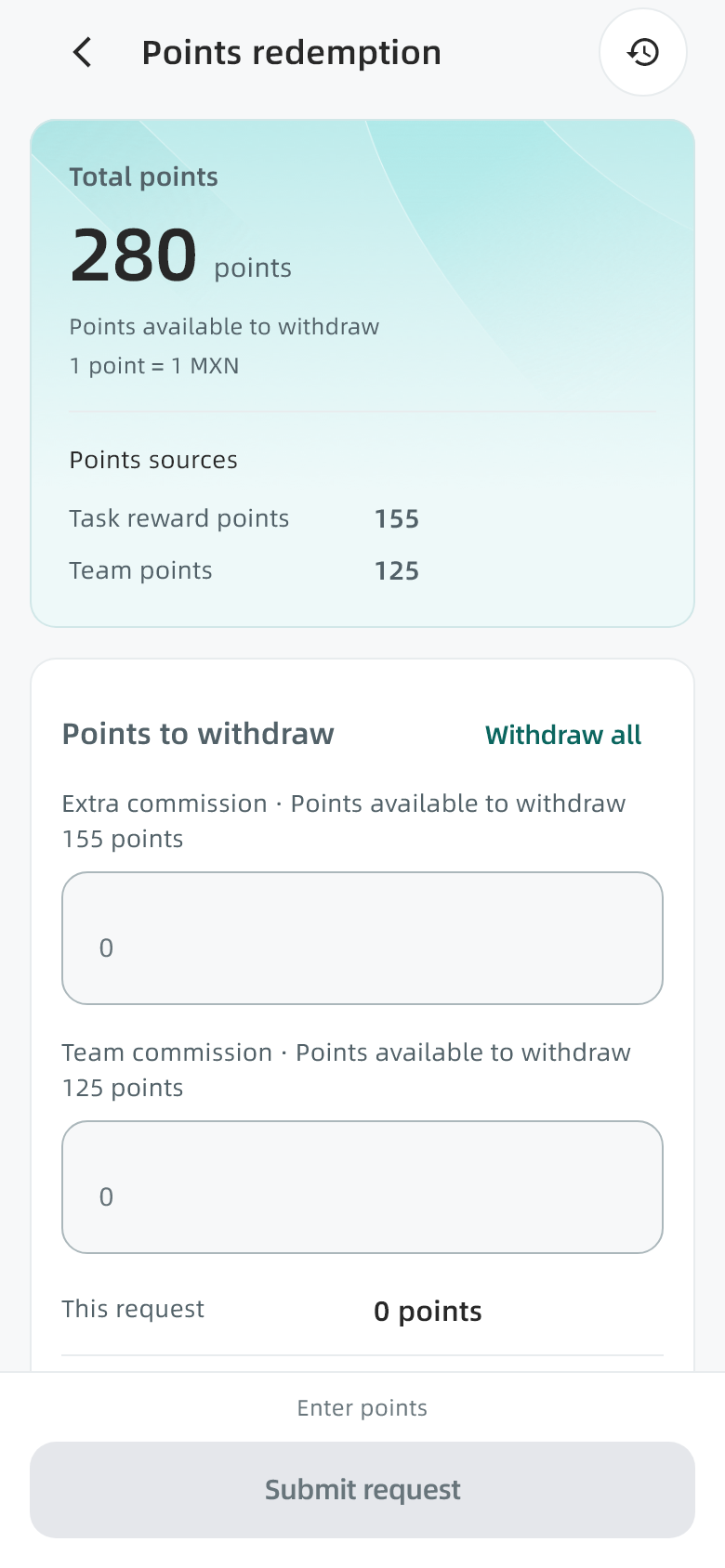
Steps
- Wait until available points load. Resolve reconciliation, load failure or unavailable-state notices.
- Enter a value above zero and no greater than available points, with up to two decimals, or use Withdraw all.
- Check the requested value, remaining balance and receiving account. Add missing payment information first.
- Submit once and wait for the result, then open the corresponding withdrawal record.
Check the result · Find the request number, points and status in withdrawal history.
Keep in mind · If the result is uncertain, check the original request before submitting again. A saved request is still subject to review and payment processing.
16 / BXMedia
Follow a withdrawal to its result
Each request has its own reference and progress.
My points → Withdrawal history → Request
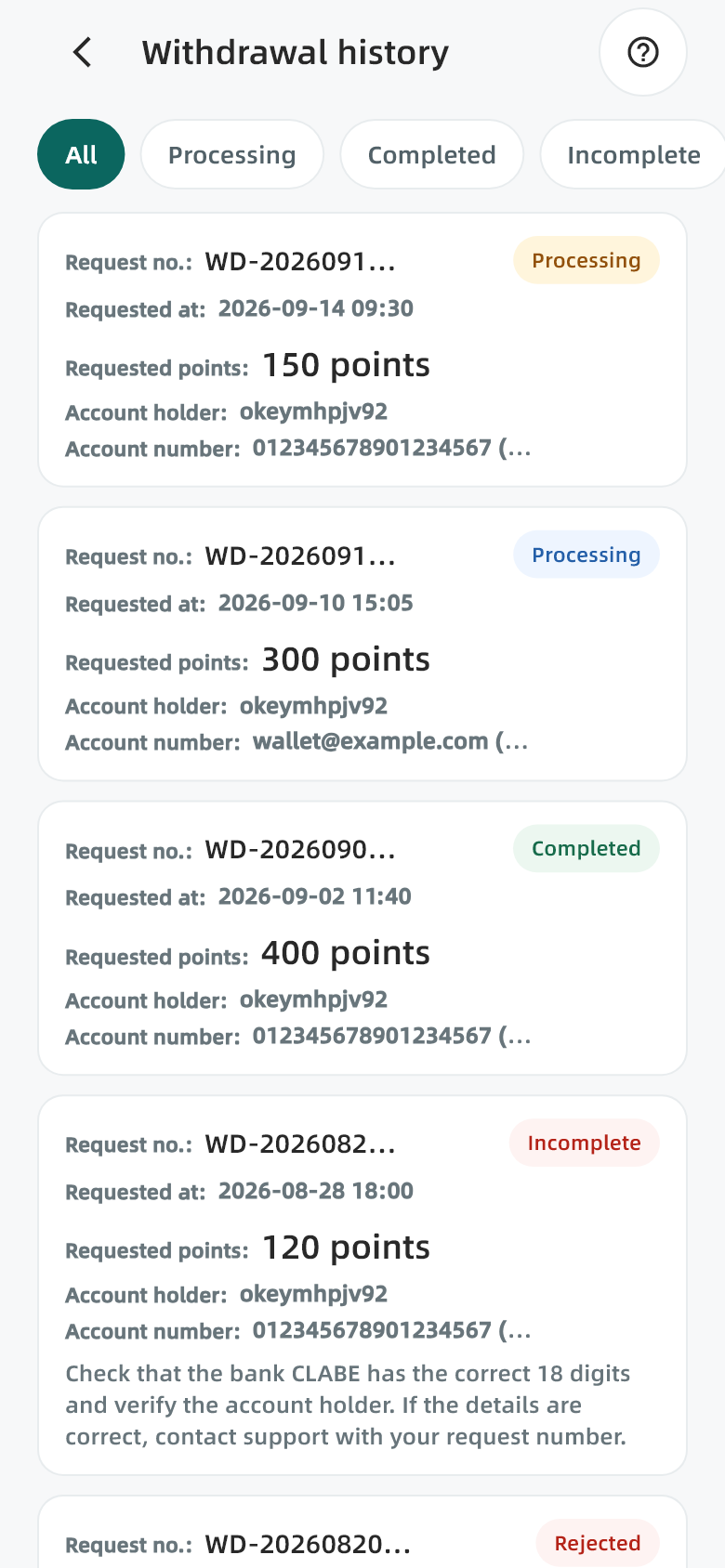
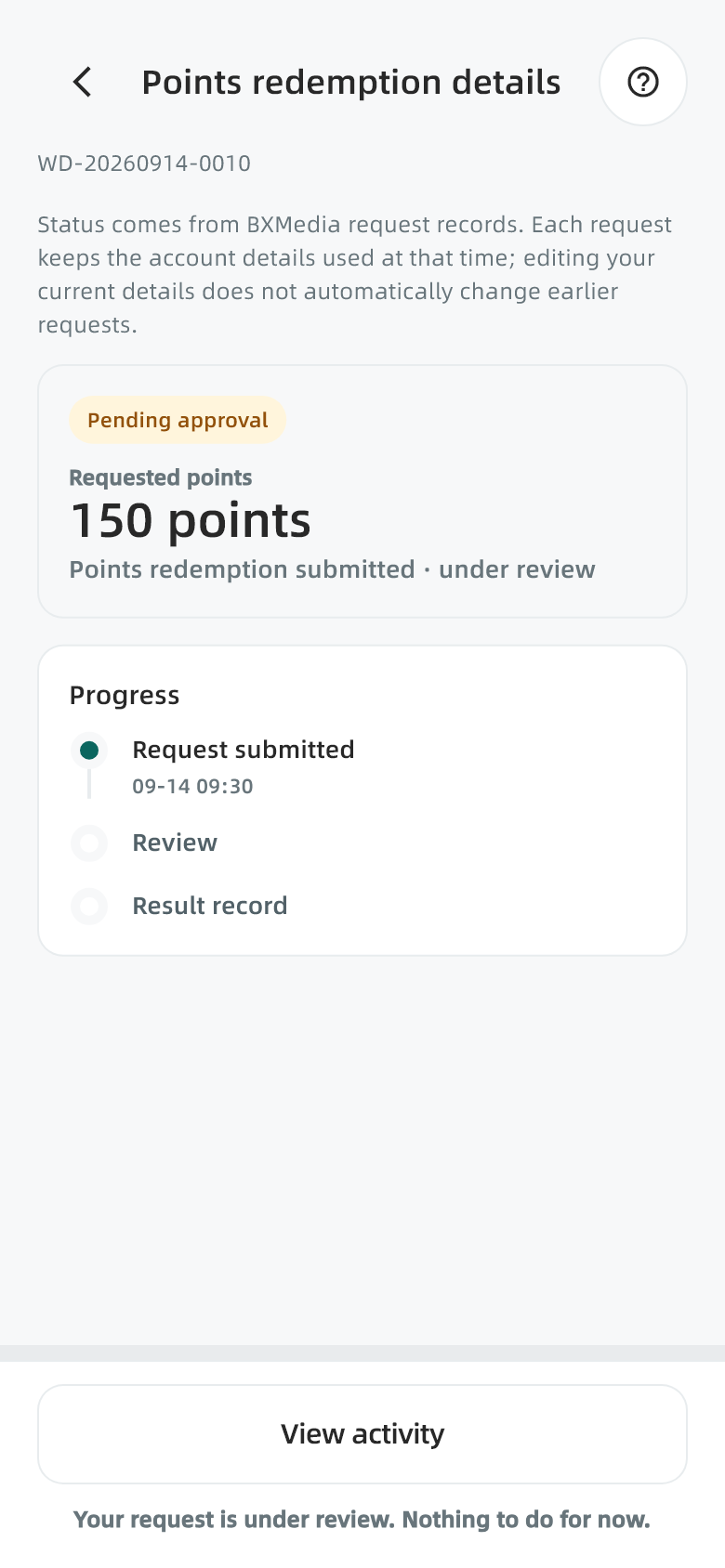
Steps
- Open withdrawal history and find the request by status, number or date.
- Open details and review the recorded amount and processing events.
- Read any request for more information, rejection or failure reason before acting. Contact operations when needed.
Check the result · Check the final recorded outcome and the actual receiving account where relevant.
Keep in mind · Pending review, processing and completed mean different stages. Submission alone does not confirm receipt; do not replace a request to guess its outcome.
17 / BXMedia
Invite a creator to your team
Share your invitation and let the other creator complete the join flow.
Bottom navigation → Team
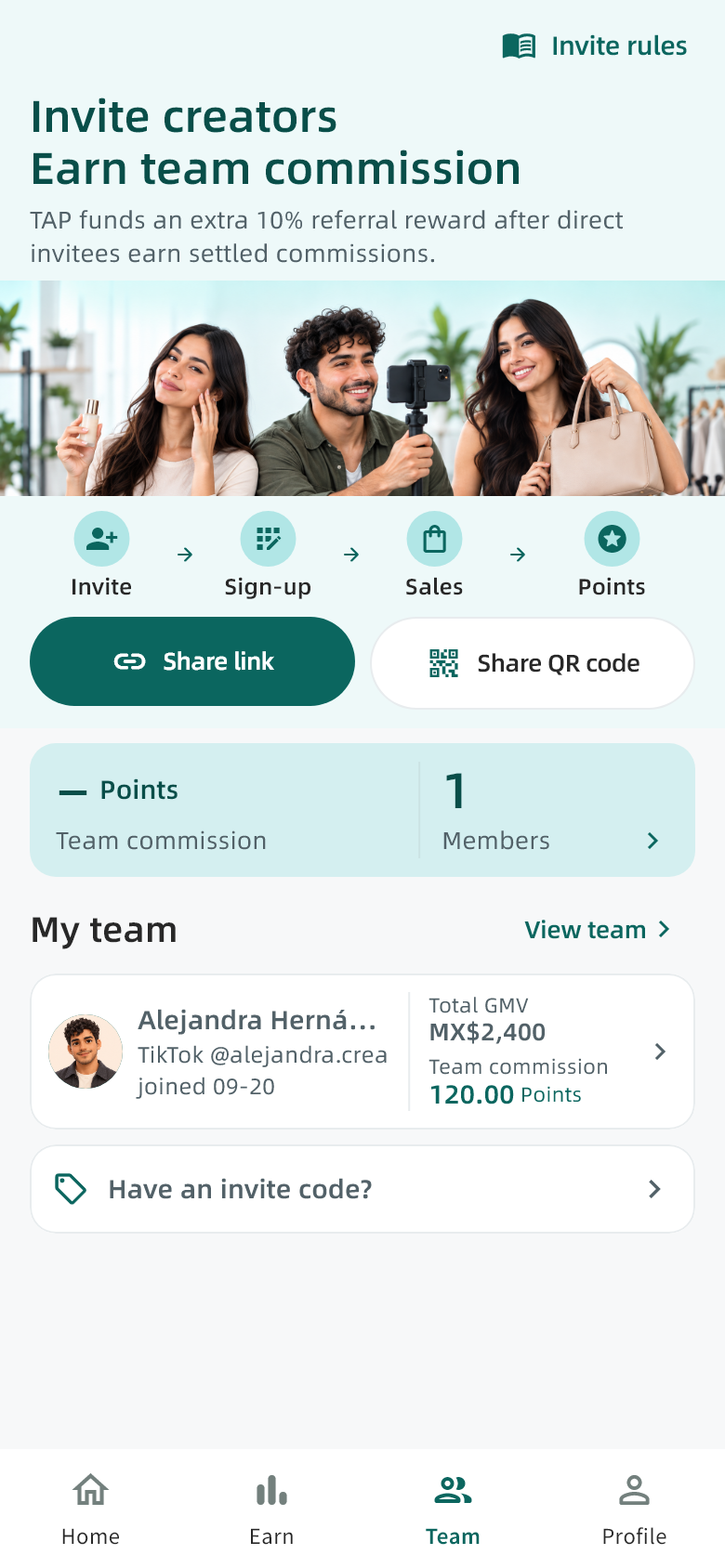
Steps
- Open Team and read the invitation rules.
- Copy your invitation link or save the QR code using the available action.
- Ask the creator to open the invitation, sign in and complete the joining steps. Use Enter invitation code when applicable.
- Return to Team and verify the actual member association.
Check the result · The creator appears in the member list and both parties can check the relationship.
Keep in mind · Sharing a link, opening a QR code or signing in alone does not prove joining is complete. An invitation is not earned points.
18 / BXMedia
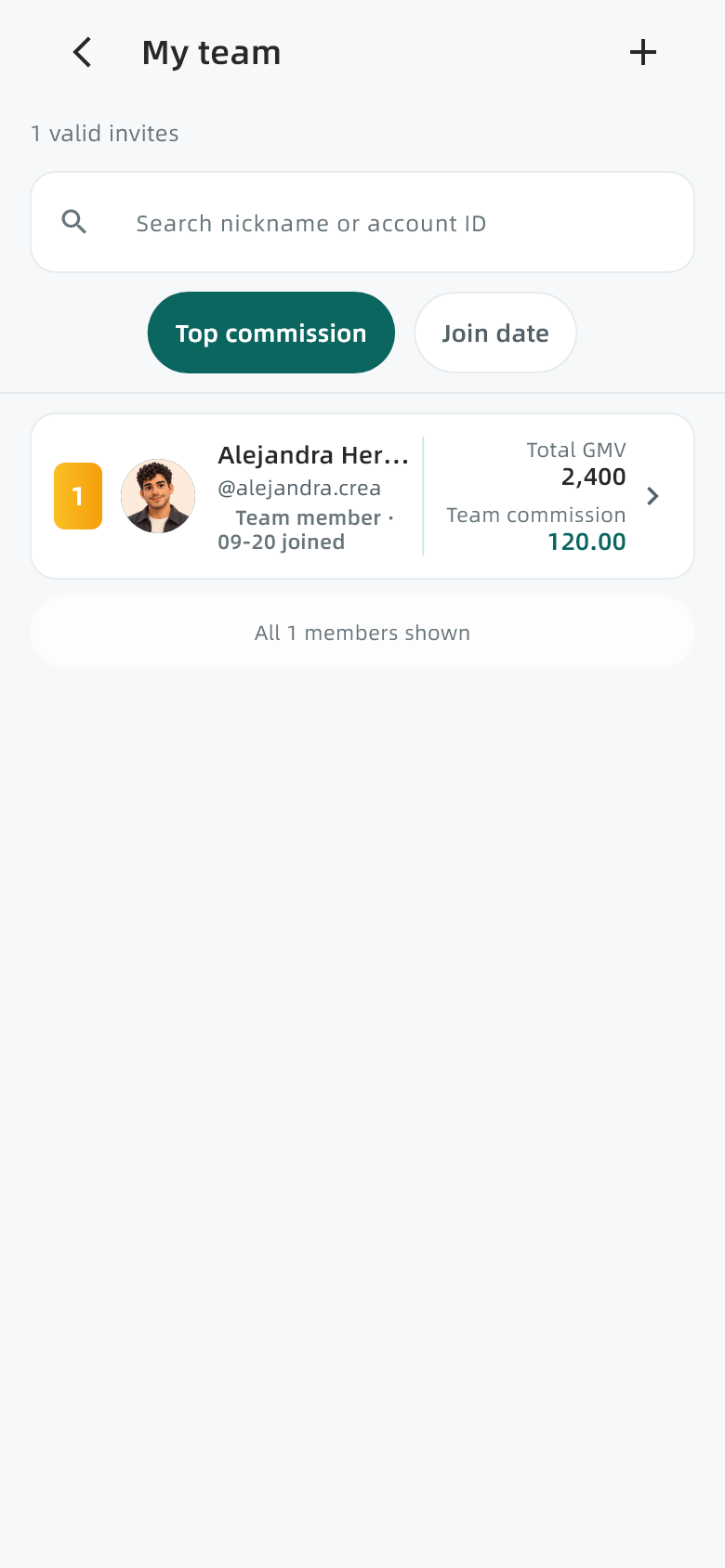
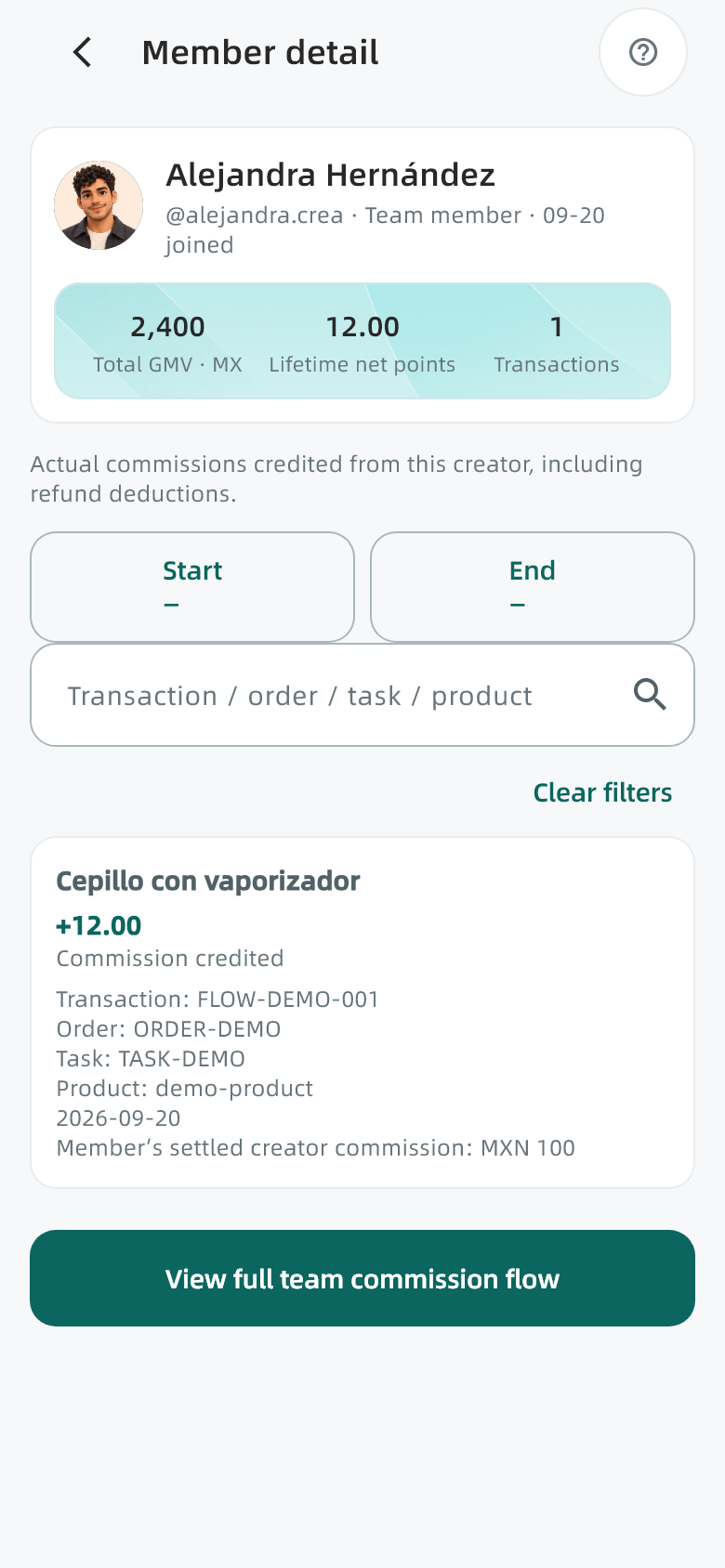
View members and team contributions
Use the member list and details to understand recorded contributions.
Team → View all → Member
Steps
- Open the team area and choose View all or the member entry.
- Find a member by name or account and open their details.
- Read contribution figures with the team rules and update time. Use the points ledger to check related entries.
Check the result · Find the member and the explanation of their recorded contribution.
Keep in mind · A member's sales are not your own income. Unavailable data or a dash must not be interpreted as confirmed zero earnings.
19 / BXMedia
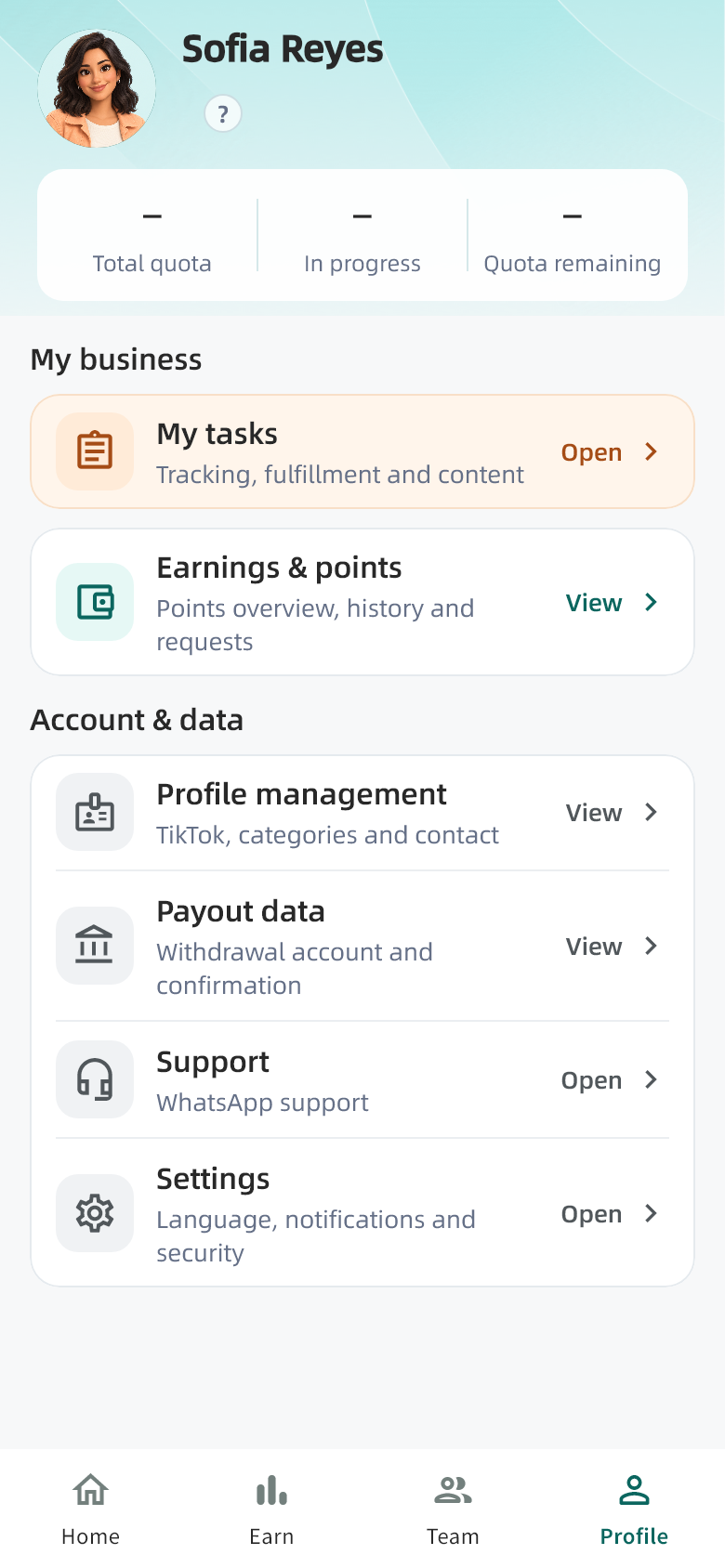
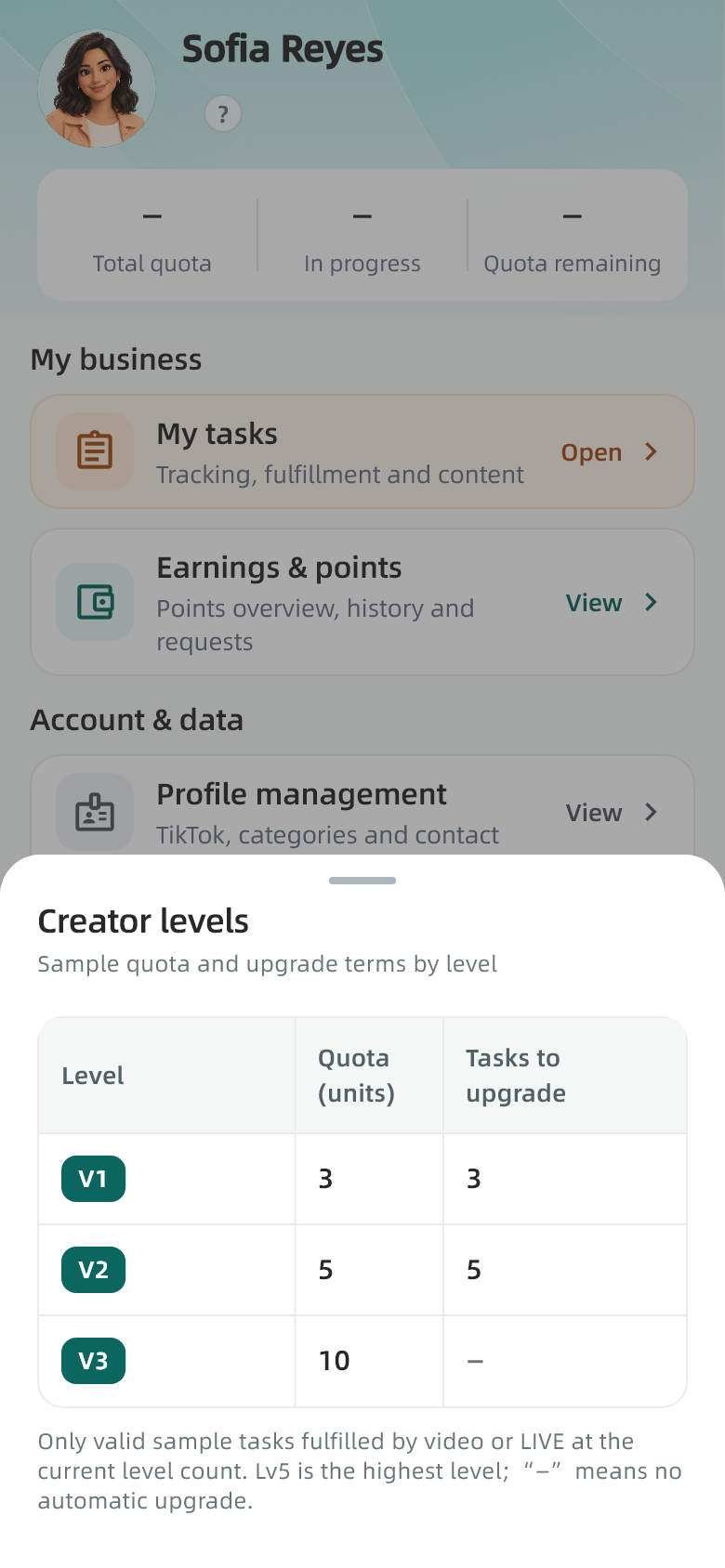
Check creator level and sample capacity
Check remaining capacity before joining another sample task.
Profile → Level help
Steps
- Open Profile and read total capacity, in-progress tasks and remaining capacity.
- Tap the question mark beside the level to view the displayed limits and upgrade rules.
- Complete valid sample-video fulfillments toward the displayed upgrade criteria and check their recorded completion.
Check the result · Understand the capacity currently available to your account and the next level's criteria.
Keep in mind · The table in the screenshot is illustrative. Actual limits come from your account. Upgrade counts refer to valid completions, not applications; a loading failure is not unlimited capacity.
20 / BXMedia
Edit your profile and language
After saving, return to the relevant page to check the result.
Profile → Profile details / Settings
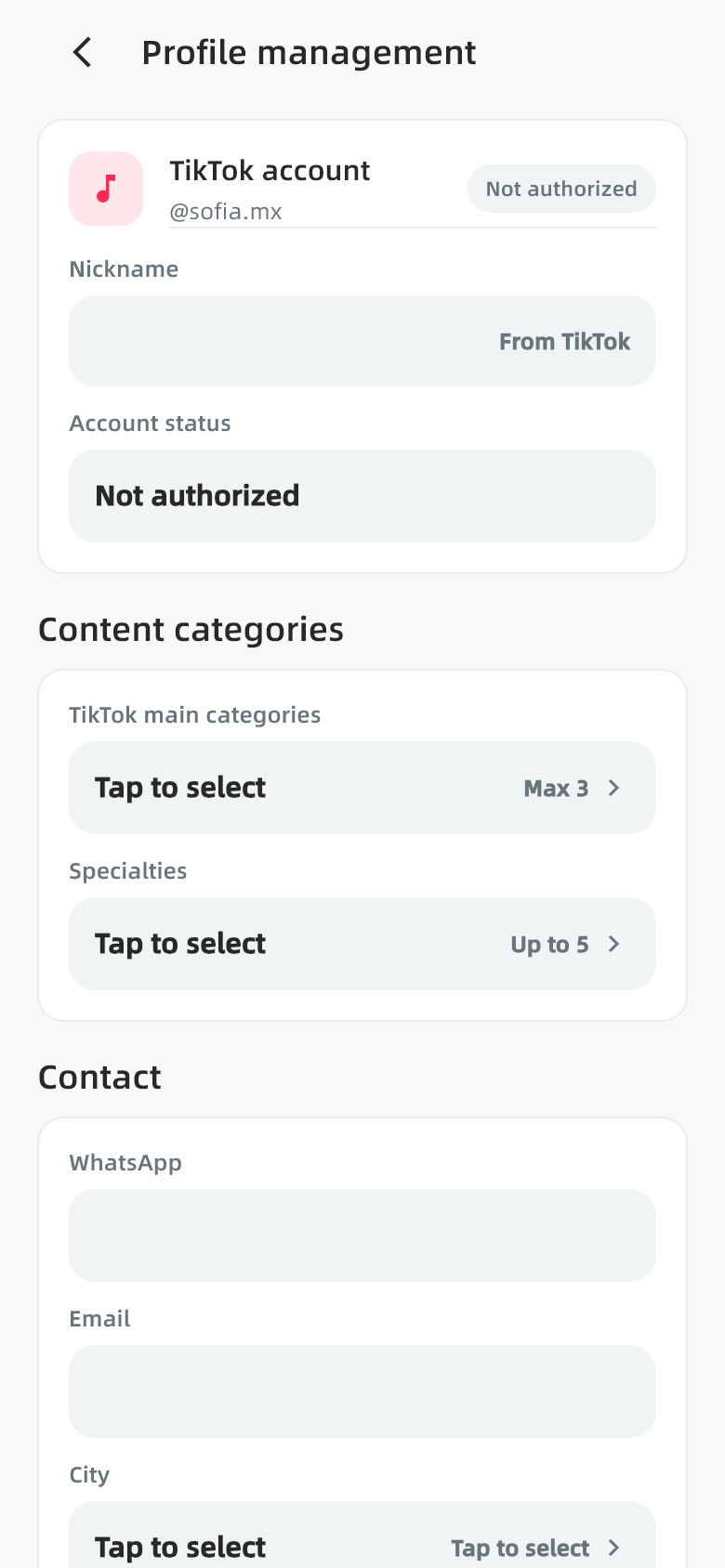
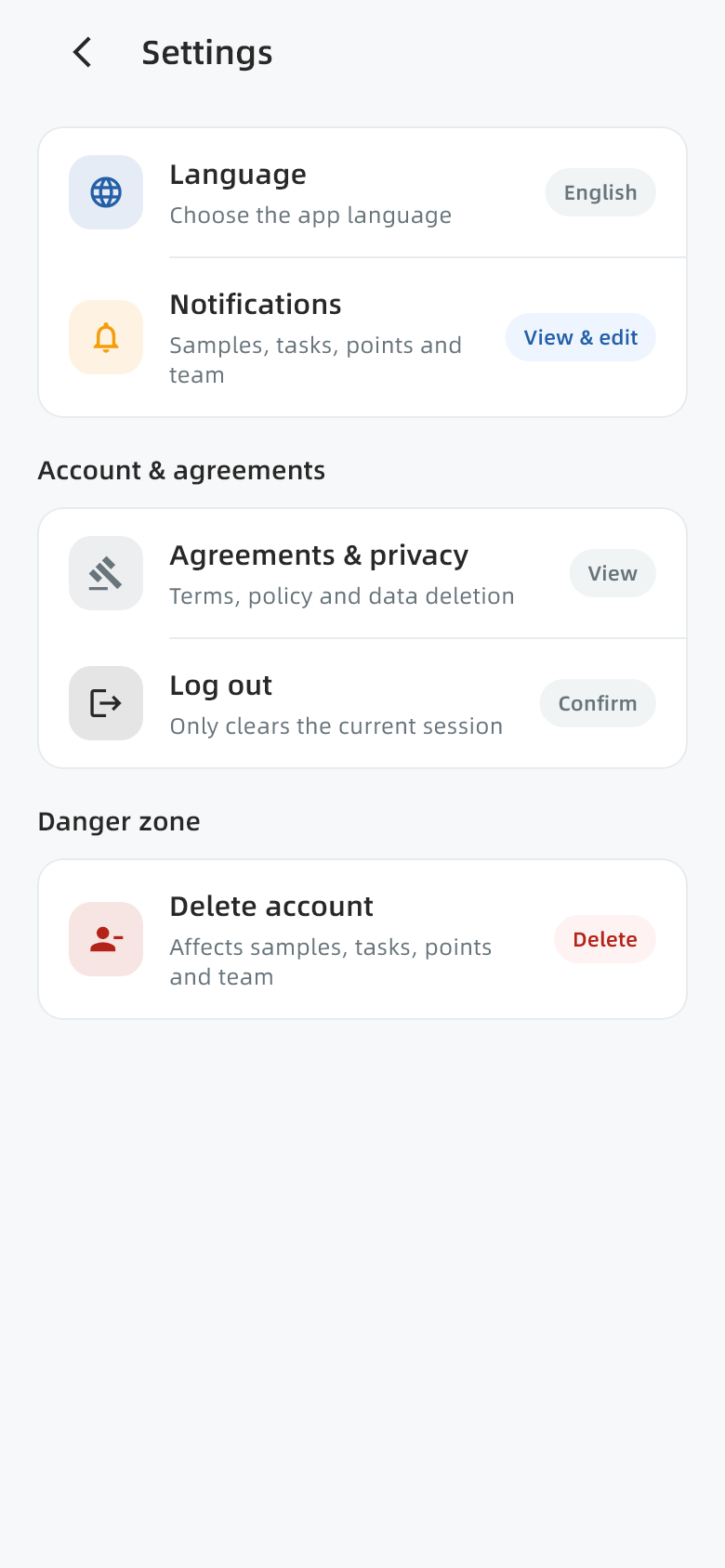
Steps
- Open Profile → Profile details, edit the available contact, category or other fields and save.
- Open Settings → Language and choose Spanish, English or Chinese. Spanish is intended for everyday use in Mexico.
- If the wrong TikTok account is linked, check the authorization account. Use the confirmed logout action when needed.
Check the result · Verify saved details and interface language; sign in again after logging out.
Keep in mind · Language changes do not change the market, currency or payment account. Profile location fields do not update the TikTok sample delivery address.
21 / BXMedia
Read messages and contact support
Open the related task or request before asking for help.
Home → Messages; Profile → Contact support
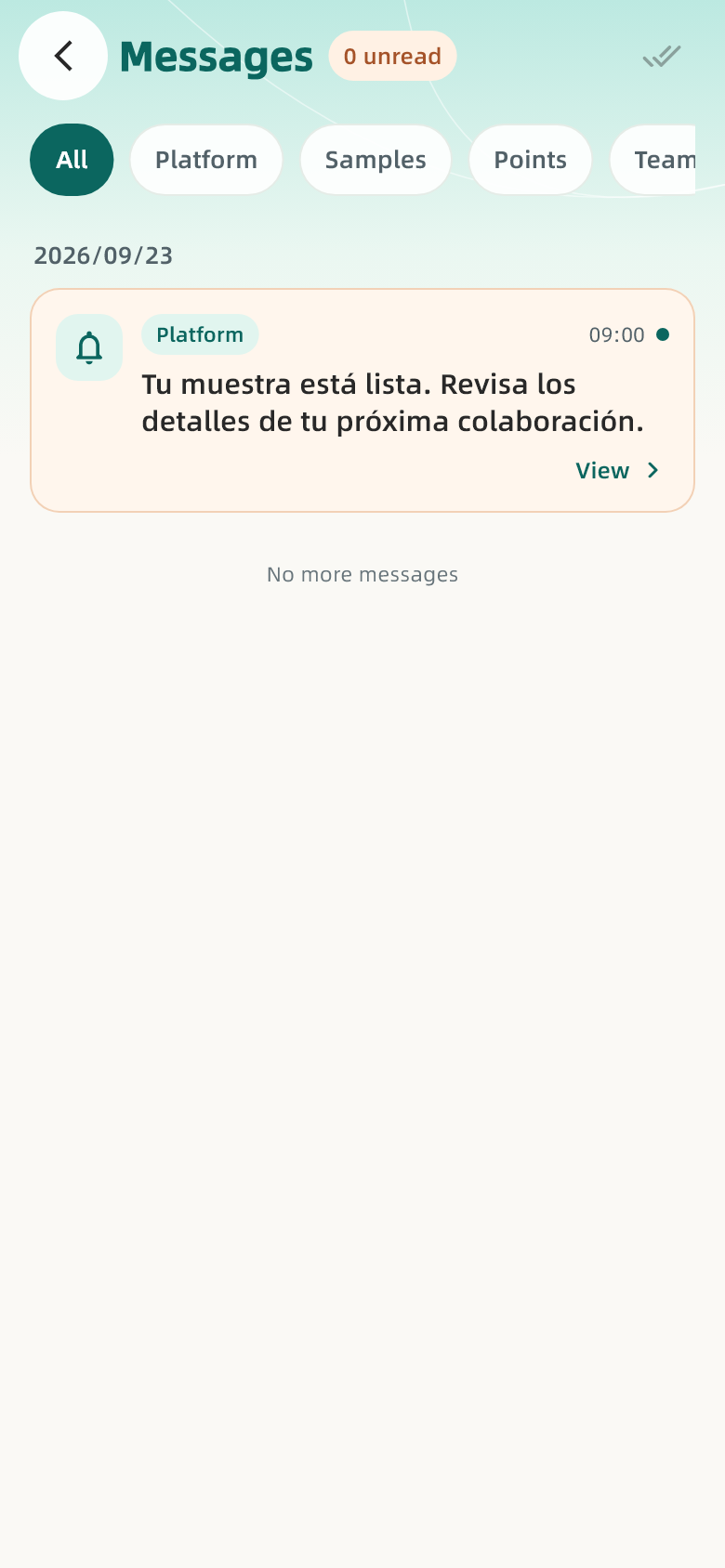
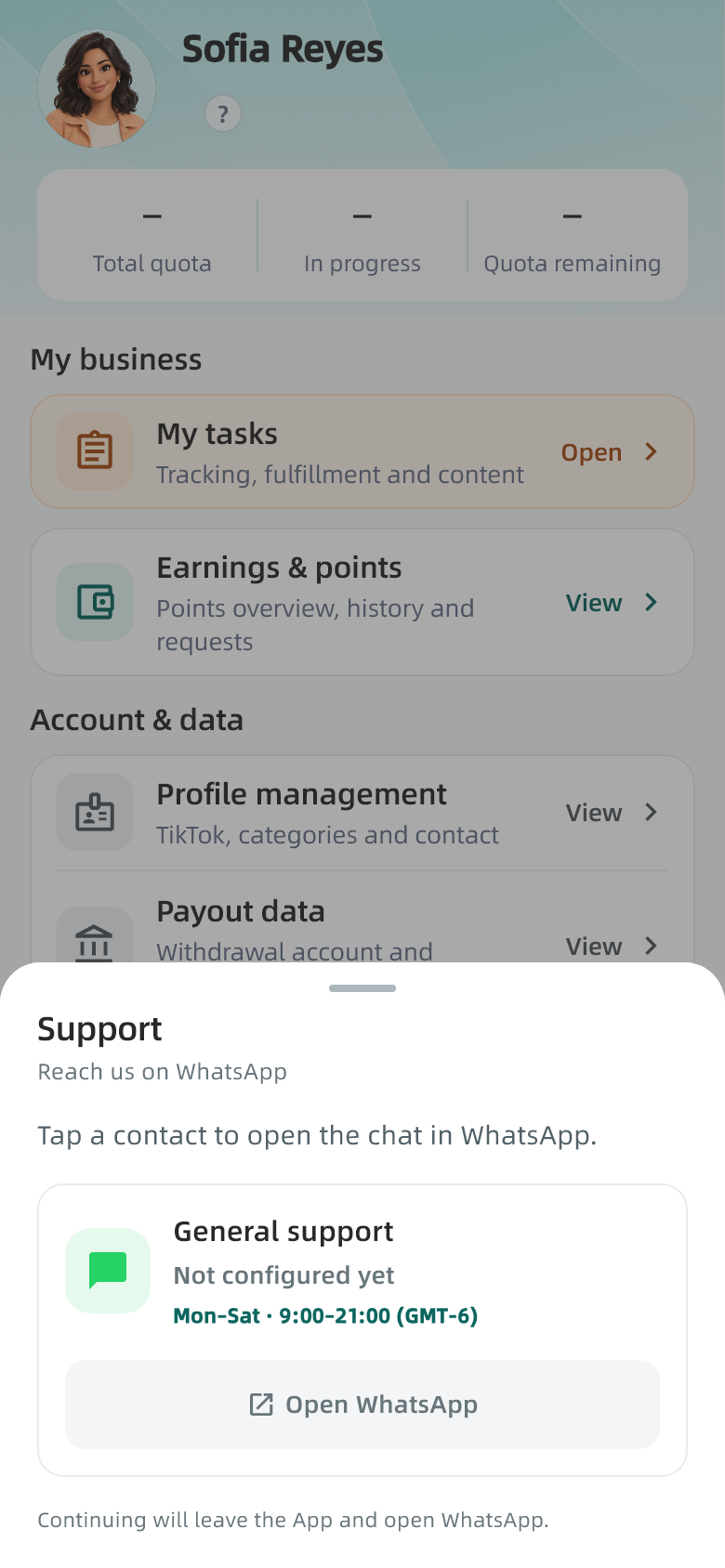
Steps
- Open the message entry on Home and follow an alert to its related task or request.
- Use Settings → Notifications for available preferences and check the phone's notification permission if relevant.
- Open Profile → Contact support. Include the task or request number, time, error text and steps already tried.
Check the result · Support can locate the case from its reference.
Keep in mind · If the app has no active support channel, use your established BXMedia operations contact or the official website Support page. Never send passwords or verification codes.
22 / BXMedia
Log out or request account deletion
Logging out and requesting deletion are separate actions.
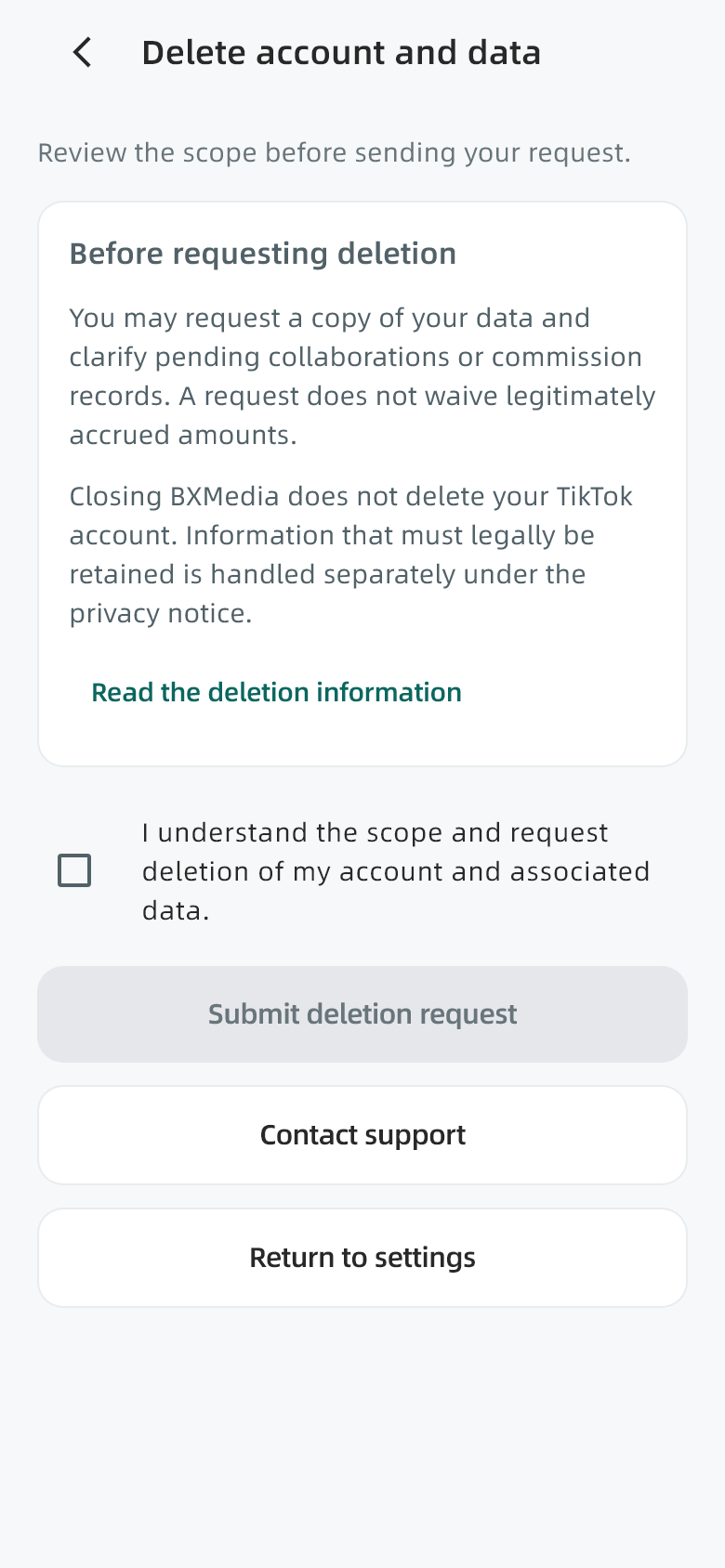
Profile → Settings → Delete account and data
Steps
- To leave the current session, open Settings → Log out and confirm.
- For deletion, first review unfinished work, withdrawals and records you need.
- Open account deletion, read its scope and privacy information, accept the required confirmation and review the second confirmation.
- Check the response and follow the stated channel for progress and scope.
Check the result · Distinguish a submitted request, account deactivation and completed data handling.
Keep in mind · BXMedia account actions do not delete your TikTok account. Retention and processing scope follow the deletion notice and Privacy policy.
23 / BXMedia
Merchant cooperation manual
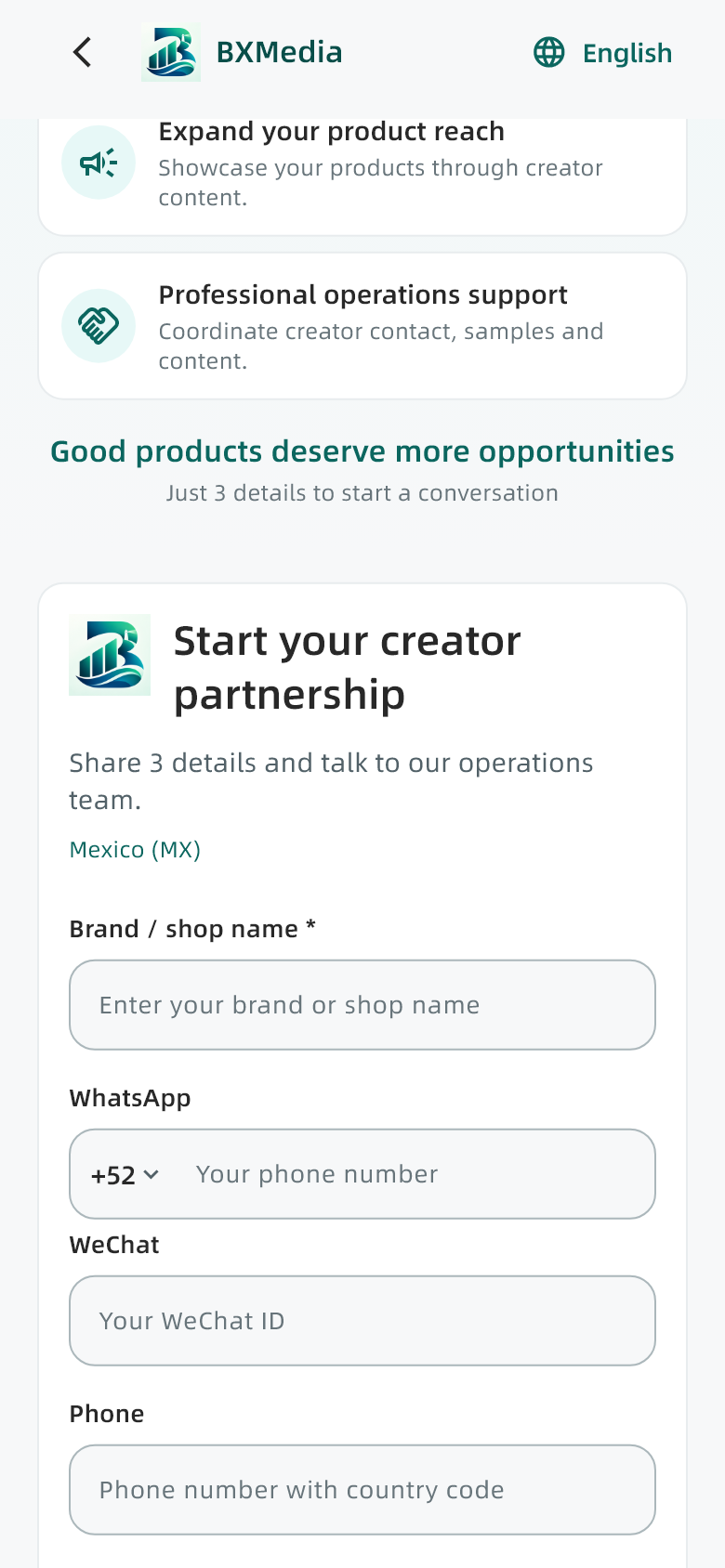
On the website, choose For merchants; creator sign-in is not required. In the app, choose the merchant entry on the welcome screen and open quick registration. Both routes register your cooperation interest.
Steps
- Enter your brand and contact details · Enter your brand or store name and main product category. Provide at least one of WhatsApp, WeChat or phone. Include a country code for phone and WhatsApp and choose a contact language. Type the category on the website; select a loaded category in the app.
- Read the privacy notice and submit · Check your brand and contact details, read the Privacy policy and complete the confirmation shown before submitting. Wait for the result without submitting again. Do not provide passwords, verification codes or bank details.
- Save your reference · After the success message, save the page or write down the registration reference. If the website cannot confirm the result, keep your details and ask operations to check before registering again.
Check the result · This registers your interest in cooperation. Products, samples, content requirements, budget and timing are agreed through follow-up discussion.
Keep in mind · To add or correct submitted information, contact operations with your reference.
Merchant cooperation manual
Register through the app or website, keep your reference and coordinate product cooperation with the operations team.
Read online →